Reset your password
Use this flow when you've forgotten your password and can't sign in. To change your password while you're already signed in, see Manage your profile instead.
Prerequisites
- An existing Breqwatr Cloud account.
- Access to the inbox of the email address on that account.
Steps
-
On the sign-in page, click Forgot your password?.
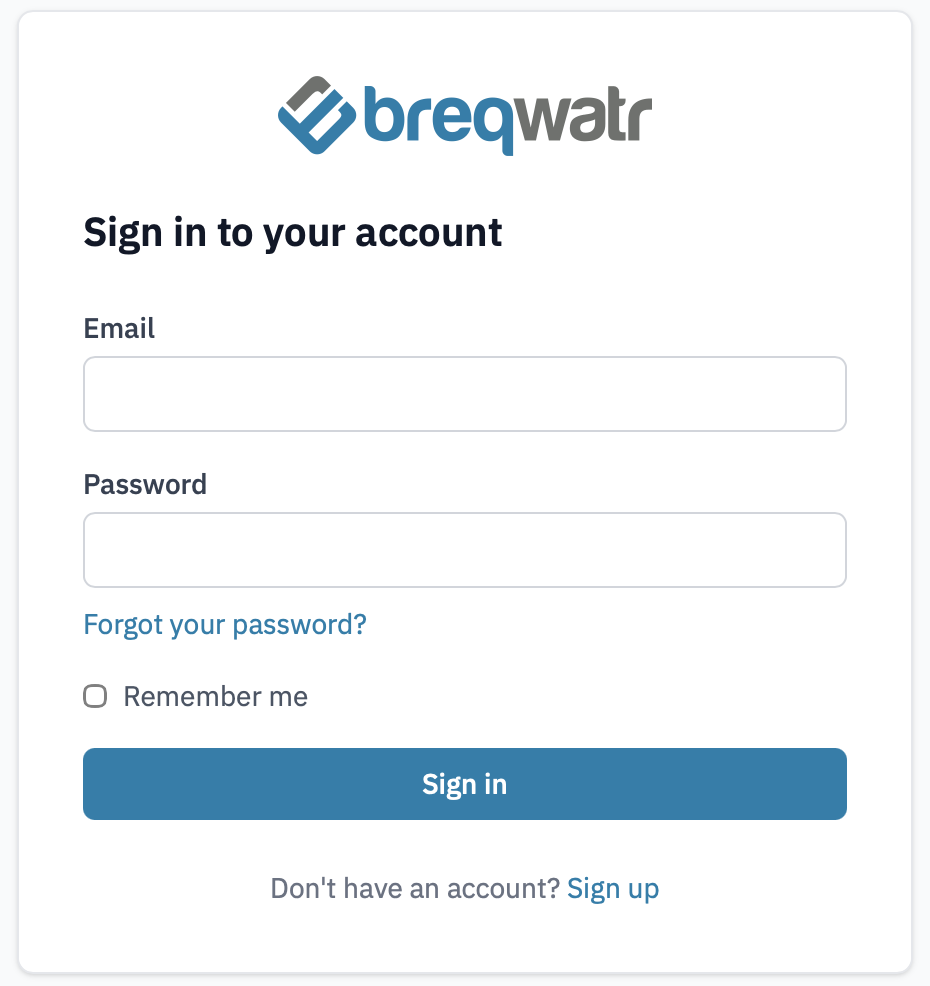
Sign-in page with the "Forgot your password?" link highlighted.
-
Enter the email on your account and click Send reset instructions.
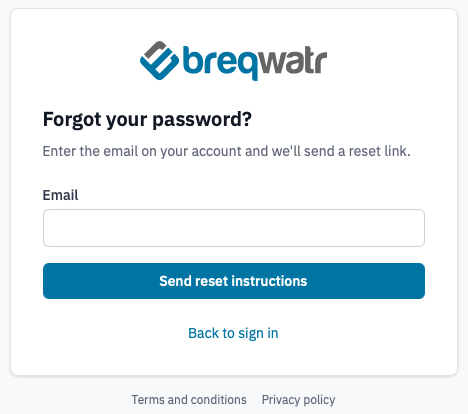
Forgot-password form.
-
Open the password reset email and click the link inside. The link is single-use and expires after a short window.
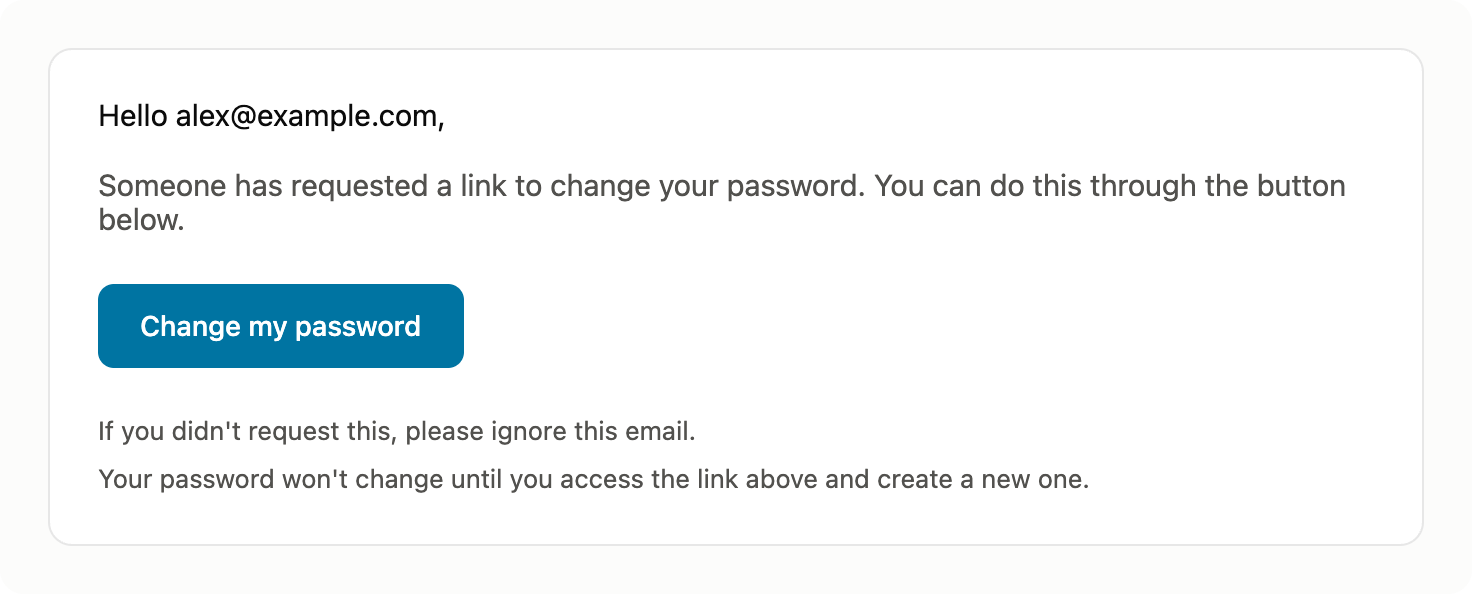
Password reset email.
-
Enter your new password twice and click Change password.
Passwords must be at least 8 characters and include an uppercase letter, a lowercase letter, and a number.
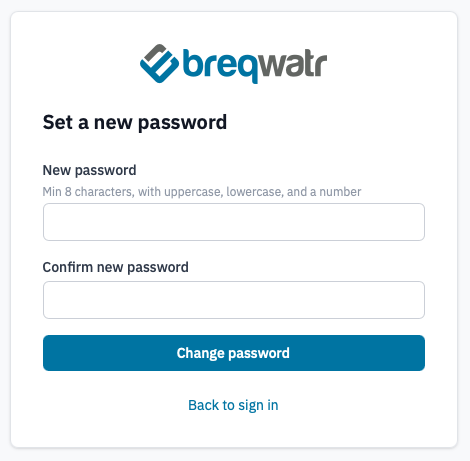
New-password form.
-
(Brownfield only) If your account is one we migrated from a previous OpenStack portal, you'll see an extra optional field for your existing OpenStack password. Fill this in if you still know the password you used with the
openstackCLI or another portal and want to keep it. Leave it blank to have it reset.
Verification
You'll be redirected to the sign-in page. Sign in with your new password to confirm the change.
Next steps
- Sign in to your account
- Turn on two-factor authentication to make future credential resets harder for someone else to abuse.