Transfer ownership
An organisation has exactly one owner at a time. Transferring ownership promotes a chosen member to owner and demotes the current owner to admin. It's a one-step swap — the organisation is never without an owner.
Prerequisites
- You're the current owner of the organisation.
- The person you're transferring to is already a member of the organisation. (If they aren't yet, invite them first and wait for them to accept.)
Steps
-
Open the Team page from the side navigation.
-
Find the row of the member you want to make owner.
-
Click the Role dropdown on their row and pick Owner.
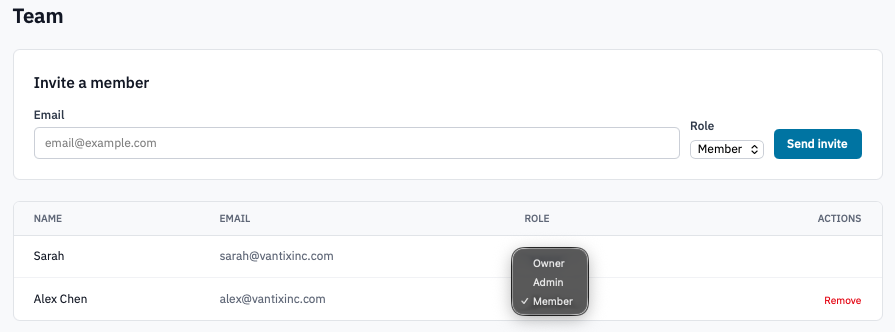
Team list with the role dropdown open and Owner highlighted on another member's row.
-
Read the confirmation prompt carefully — it will say something like "Transfer ownership to
? You will be demoted to Admin." Click OK to proceed. 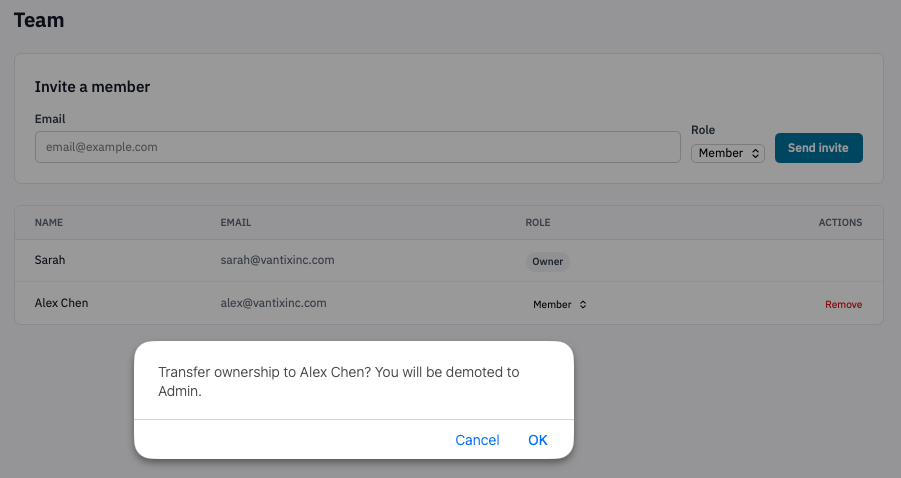
Transfer ownership confirmation dialog.
The swap completes immediately:
- The new owner can now change roles, transfer ownership again, manage projects, and remove any member.
- You keep all admin abilities (invite, manage projects, remove members other than the owner), but can no longer change roles or transfer ownership.
Verification
- The Role column shows the new owner with the Owner badge and you with the Admin badge.
- The role dropdown is gone from your own row — only the current owner sees role dropdowns on the other rows.
Next steps
- Manage member roles — what your new admin role lets you do.
- Audit log — ownership transfers are recorded.