Turn on the container registry
The Breqwatr Cloud container registry is OCI-compatible, project-scoped,
and switched on per project from a plan. You pick a plan (free or paid)
and the registry becomes available for docker push / docker pull.
Prerequisites
- An organisation you're a member of as owner or admin (only these roles can change the plan).
- A project to attach the registry to. The plan is per-project — a paid plan in prod is independent of the free plan in dev.
Steps
1. Open the registry page
-
Open the project from the side navigation.
-
Click Container registry under the project's menu.
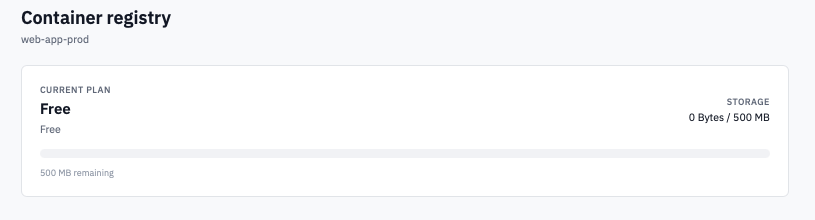
Container registry page showing the current plan and storage usage bar.
The first time you visit, the page shows the project's current plan (most deployments default to the free plan), the storage used so far, and a Change plan grid below.
2. Pick a plan
-
Read the Change plan grid. Each plan shows:
- Plan name (e.g. Free, Starter, Pro).
- Monthly price, when billing is enabled on your deployment. Plans priced at zero are labelled Free.
- Storage cap in human-readable units (e.g.
1 GB,50 GB).
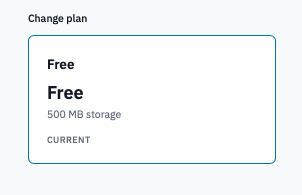
Change plan grid with three plan cards.
-
Click Switch to
on the plan you want. -
Confirm the prompt.
The new plan takes effect immediately. If you're switching down to a plan whose cap is below your current usage, your storage tile will turn red ("over the plan's cap") and new pushes are refused until you clean up — existing pulls keep working.
3. Read the usage bar
The storage bar reflects what the registry actually holds, not what you've pushed historically. Deleted tags free space within a few minutes (after the registry's garbage collection catches up).
- Green — comfortable headroom.
- Yellow at 80%+ — warning. Either upgrade the plan, prune tags, or set a retention policy.
- Red when over cap — new pushes are refused until usage drops below the cap.
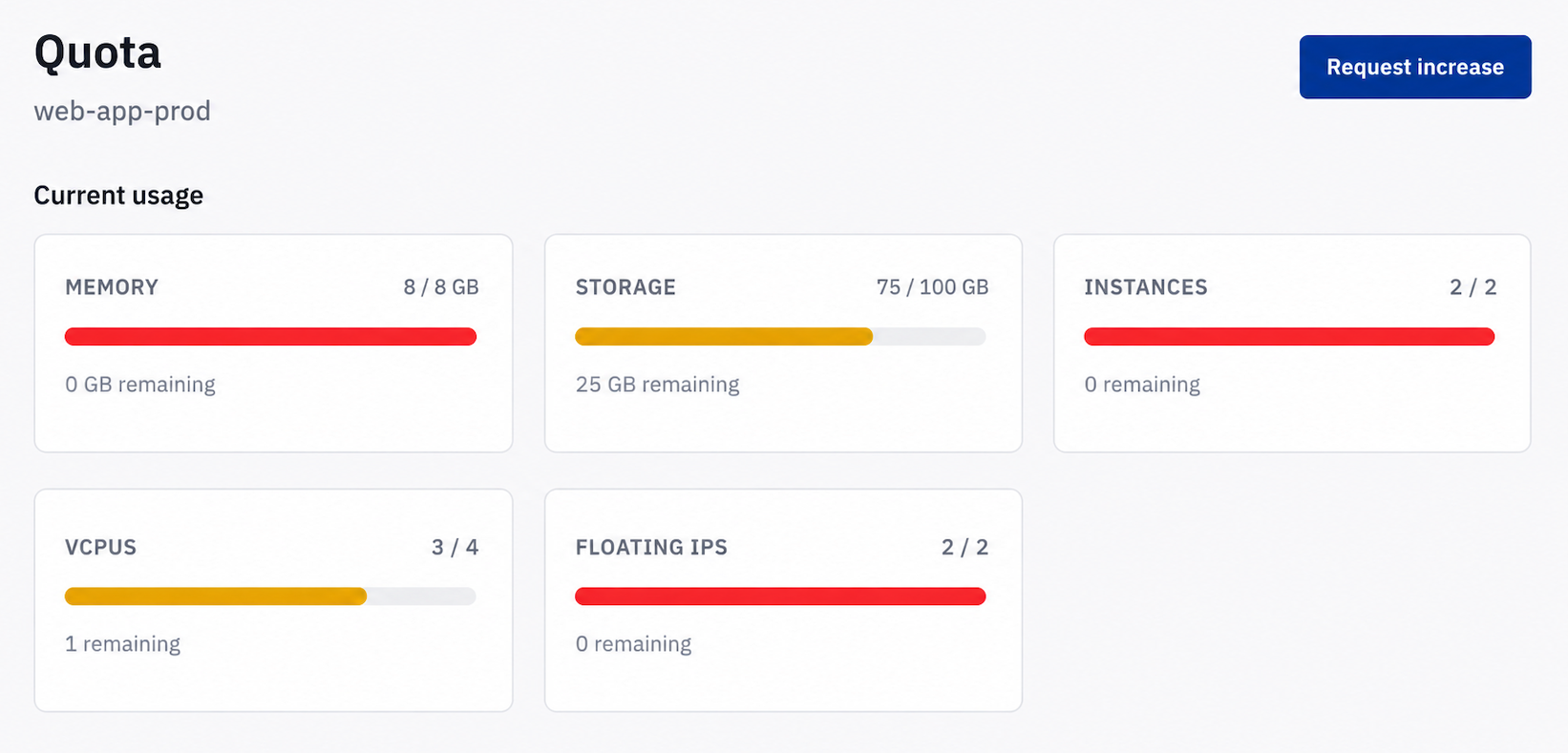
Storage bar in the yellow ~85% state with the warning text below it.
Verification
- The plan card you switched to shows a Current badge.
- The storage figures display in the units you'd expect (GB, MB).
- A push from
docker pushreaches the registry — see Push and pull images for the credentials and push walkthrough.
Next steps
- Push and pull images — create a
credential and authenticate
docker login. - Retention policy — automated tag cleanup to keep storage in check.
- Manage repositories — browse repos and tags, delete what you don't need.