Manage snapshots
Each project has a Snapshots page that lists every volume snapshot in the project, with delete. Use it to clean up old snapshots, see which volume each snapshot was taken from, and check the status of an in-flight snapshot.
This page covers reading and deleting snapshots. To create a new snapshot, see Make a volume snapshot.
What's on the page
- Volume snapshots only. Snapshots taken from running instances are stored as images, not as Cinder snapshots — they appear on the Images page under Project Images, not here.
Prerequisites
- A project you're a member of with at least one volume snapshot. (Empty projects show the "No snapshots yet" state.)
Steps
1. Read the snapshot list
-
Open the project, then click Snapshots under its menu.
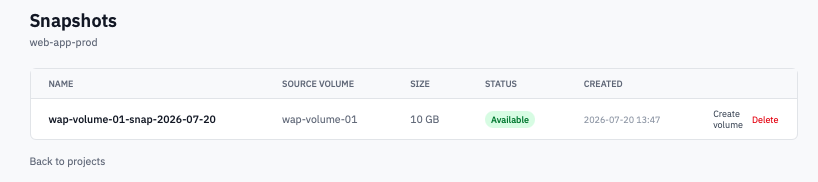
Project Snapshots page listing every volume snapshot with its source volume.
-
Each row shows:
- Name — the label you gave the snapshot when you made it, or the snapshot's short ID if you left it blank.
- Source volume — the volume this snapshot was taken from, so you can trace a snapshot back to its origin.
- Size — same as the source volume's size.
- Status — the OpenStack snapshot lifecycle (see below).
- Created — when the snapshot was taken.
2. Watch the status
The status badge on each row tracks the OpenStack snapshot lifecycle:
| Status | Meaning |
|---|---|
| Creating | The snapshot is being taken. Don't delete the source volume during this window. |
| Available | Ready to use. You can create a new volume from this snapshot any time. |
| Deleting | A delete has been requested and is in flight. |
| Error | The snapshot failed — typically a transient OpenStack issue. Delete it and try again. |
The page auto-refreshes while any snapshot is in flight, so you don't need to reload manually.
3. Delete a snapshot
-
Click Delete on the snapshot's row (only snapshots in Available state can be deleted from the Portal).
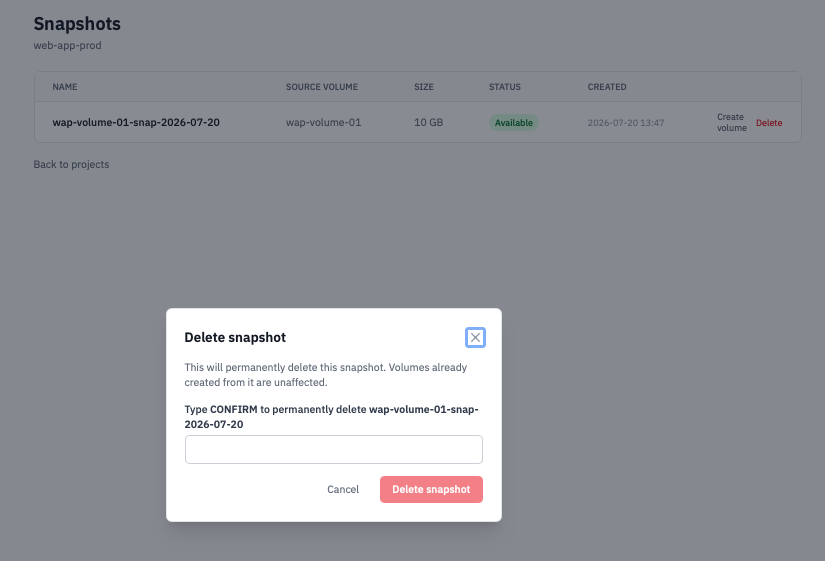
Delete snapshot confirmation dialog.
-
Confirm by typing the snapshot's name and clicking Delete snapshot.
Note: Volumes that were created from this snapshot are independent — they don't depend on the snapshot after the initial copy and stay intact after the snapshot is deleted.
The row shows a Deleting badge while the background job runs. It disappears from the list once OpenStack confirms the delete.
Verification
- A deleted snapshot drops off the list within seconds. The source volume is not affected.
- A snapshot in Error state stays on the list until you delete it explicitly. If multiple snapshots from the same volume fail in a row, contact support — usually a quota or backend storage issue.
Next steps
- Make a volume snapshot
- Create a new volume from an existing snapshot.
- Upload and manage custom images — instance snapshots land there, not here.