Configure security groups
Security groups are a project-level firewall layer that controls which inbound traffic reaches your instances. This page walks you through creating a group, opening common ports, and removing rules you no longer need.
How security groups work
- Security groups are per-project. Create them on the project where the instance lives.
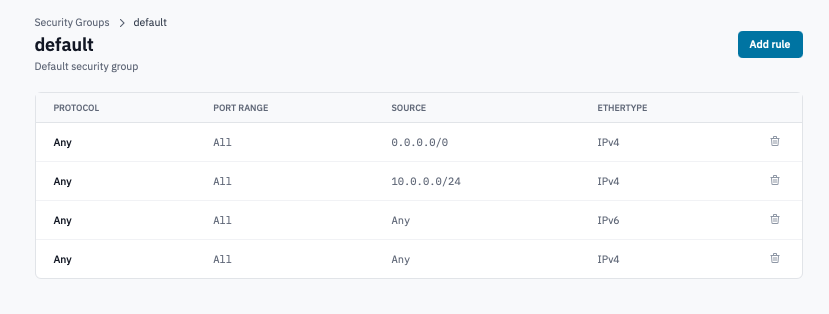
- Every project ships with a default group. It allows the instance to reach the rest of the project's network and is pre-selected on the launch form. Don't delete it.
- An instance can have multiple groups attached — rules are
additive across the groups. Use a single group for a focused
rule set (e.g.
web-serversfor HTTP/HTTPS) and attach as needed. - Rules are stateful — return traffic for established sessions is allowed automatically. You don't need to add the reverse direction.
- Only ingress rules are configurable from the Portal. Egress is open by default.
Prerequisites
- A project you can launch into (owner or admin role).
- Knowing which ports your workload needs to expose.
Steps
1. Create a security group
-
Open the project, then click Security Groups under its menu.
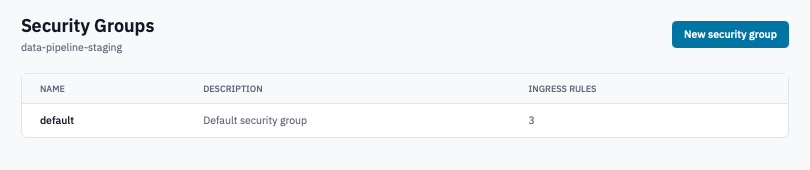
Security Groups page with the New security group button visible.
-
Click New security group.
-
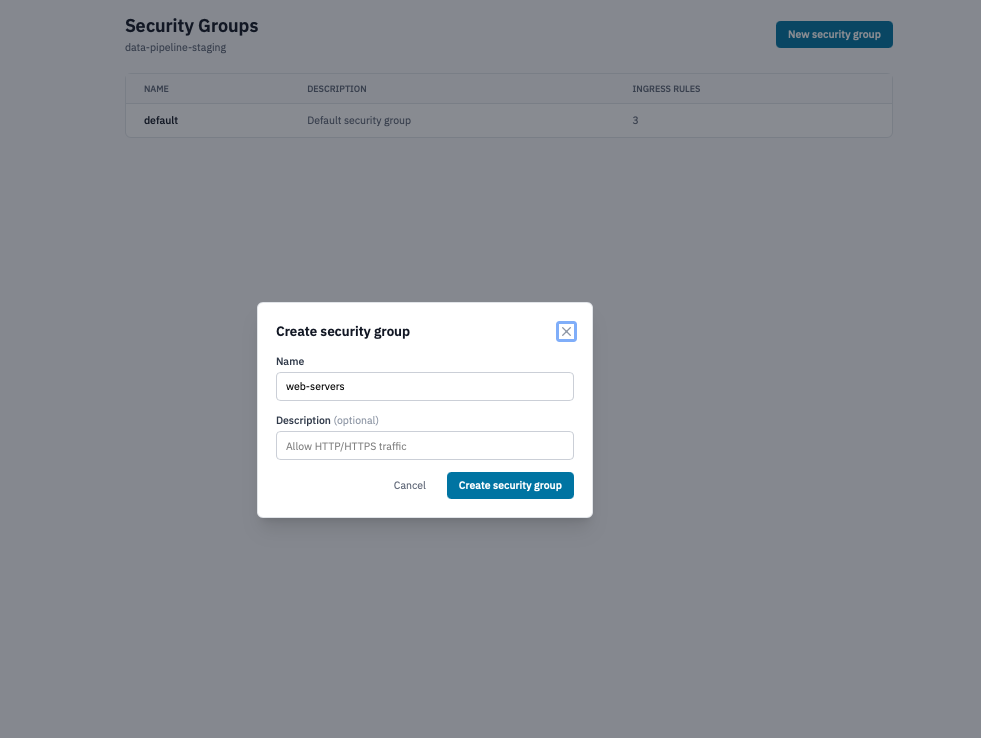
Fill in:
- Name — short and descriptive (
web-servers,ssh-from-office,db-internal). - Description (optional) — what the group is for, so teammates can tell groups apart later.
- Name — short and descriptive (
Create security group modal.
- Click Create security group.
2. Open a port
-
On the Security Groups page, click the group name to open it.
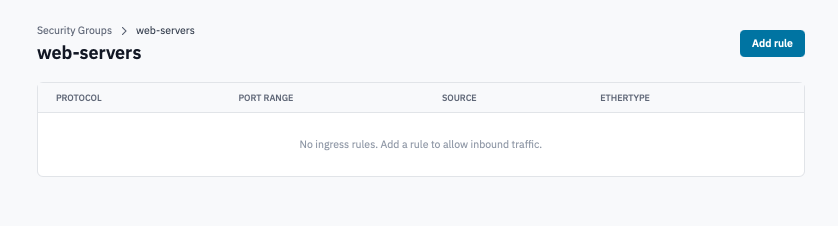
Security group detail page with the Add rule button visible.
-
Click Add rule.
-
In the Add ingress rule modal:
- Protocol — pick TCP, UDP, ICMP, or Any. TCP is the right call for SSH, HTTP, HTTPS, RDP, and most app ports.
- Open Port — pick Port for a single port, Port Range for a contiguous range (e.g. 8000–9000), or All ports to skip the port restriction entirely.
- Port — the port number for the Port choice (e.g.
443). - Source CIDR — the address range allowed in. Leave blank
for any source (equivalent to
0.0.0.0/0), or constrain to your office network (e.g.203.0.113.0/24) or another project's CIDR.
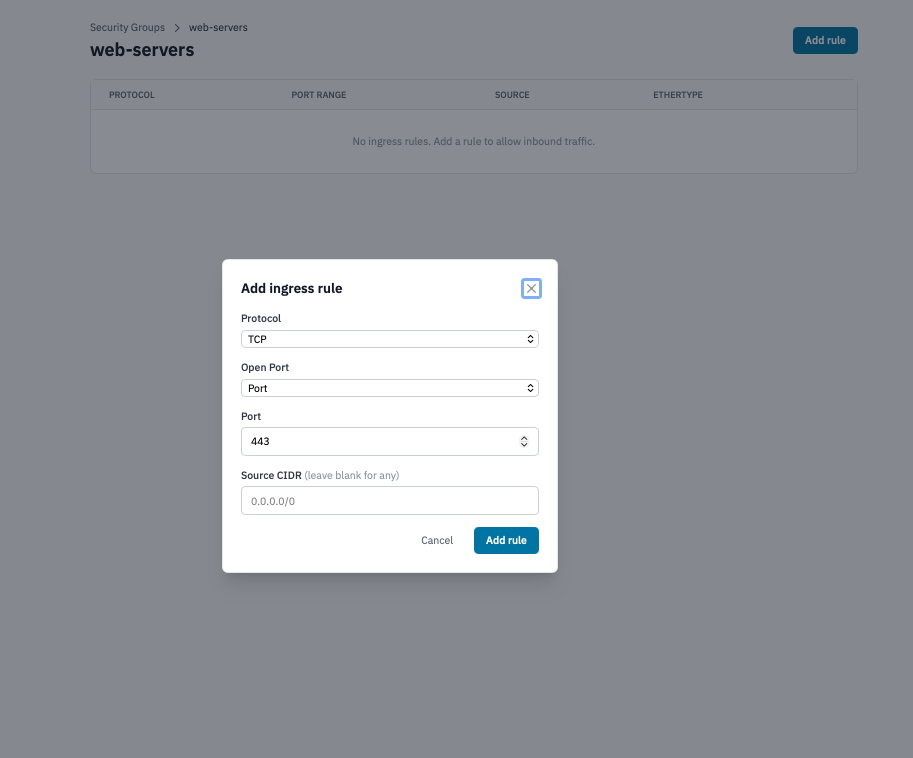
Add ingress rule modal with TCP/443 and a CIDR selected.
- Click Add rule.
Examples of common rules:
| Protocol | Port | Source | Allows |
|---|---|---|---|
| TCP | 22 | your office CIDR | SSH from your team only |
| TCP | 80 | 0.0.0.0/0 |
HTTP from anywhere |
| TCP | 443 | 0.0.0.0/0 |
HTTPS from anywhere |
| TCP | 3389 | your office CIDR | RDP from your team only |
| ICMP | (n/a) | 0.0.0.0/0 |
ping from anywhere |
| TCP | 8000–9000 | project CIDR | App ports, project-internal only |
3. Remove a rule
- On the security group's detail page, click the trash icon at the end of the rule's row.
- Confirm the prompt.
The rule disappears from the list. The change takes effect immediately — running instances no longer accept new connections matching the removed rule.
4. Attach the group to an instance
Security groups don't do anything on their own. Attach them to an instance:
- At launch — tick the group on the Security Groups
section of the launch form. The
defaultgroup is pre-checked; tick any extras you need. - After launch — open the instance, edit the attached security groups. Rules apply on the next connection attempt; existing established sessions are unaffected (stateful).
5. Delete a security group
You can delete any custom group you've created. The default
group can't be deleted.
-
On the Security Groups page, click the trash icon on the group's row.
Delete security group confirmation dialog.
-
Confirm by typing the group's name and clicking Delete security group.
Warning: Instances that had the group attached lose those rules immediately. If you remove the only group that allowed SSH, you'll lock yourself out. Confirm the group isn't in use before deleting.
Verification
- A newly-added rule appears on the group's detail page with its protocol, port range, source, and ethertype.
- From an external host within the allowed CIDR, the corresponding
port responds (e.g.
nc -vz <instance-ip> 443). - From outside the allowed CIDR, the same probe times out.
Next steps
- Launch an instance and attach the new group.
- Allocate a floating IP so the instance is reachable from outside the project network.
- Manage member roles to limit who can edit security groups.