Manage member roles
Every member of an organisation has one of three roles. Roles control
what the member can do inside Strata — they don't change what
OpenStack permits inside a project (customer users always get the
Keystone member role on the project itself).
Roles at a glance
| Role | Invite members | Change roles | Remove members | Manage projects | Read-only |
|---|---|---|---|---|---|
| Owner | Yes | Yes (incl. transferring ownership) | Yes | Yes | — |
| Admin | Yes | No | Yes (not the owner) | Yes | — |
| Member | No | No | No | No | Yes |
An organisation has exactly one owner at a time.
Prerequisites
- An organisation you're a member of as owner or admin (to remove members) — or just owner (to change roles).
Steps
1. Change someone's role
-
Open the Team page from the side navigation.
-
In the member's row, click the Role dropdown.
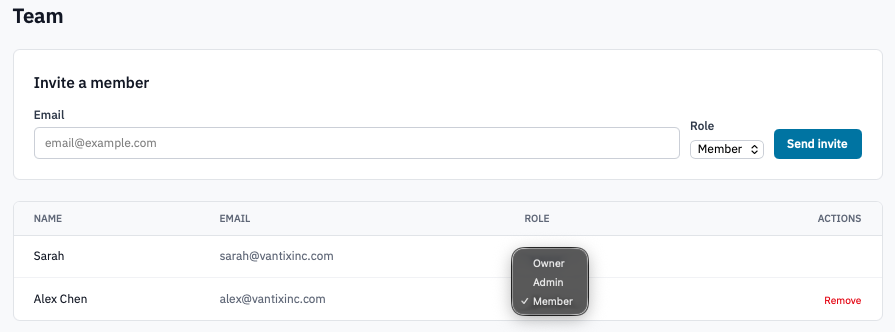
Team list showing the role dropdown open on a member.
The dropdown is only visible to owners. Admins see the role as a static badge.
-
Pick Member or Admin.
To promote someone to Owner, see Transfer ownership — picking Owner here transfers ownership and demotes the current owner to Admin.
The change saves immediately when you pick a new role.
2. Remove a member
- In the member's row, click Remove.
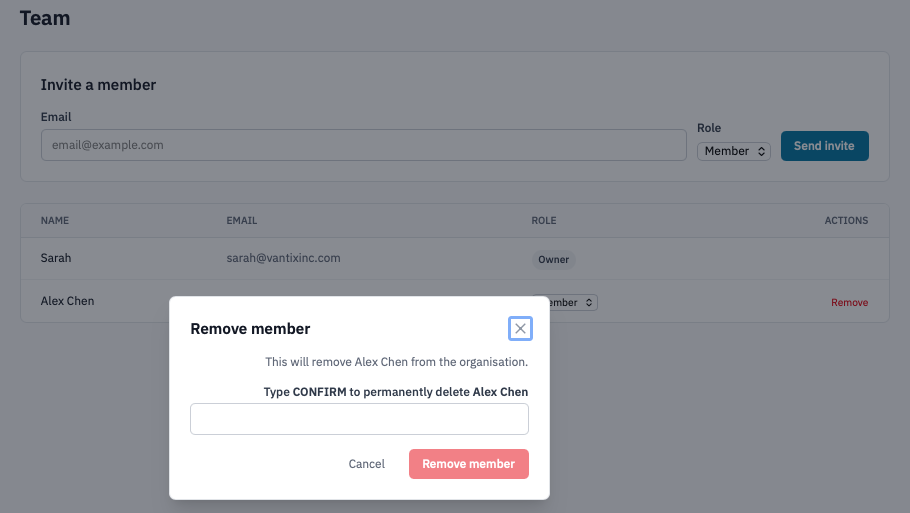
Remove member confirmation dialog.
-
Confirm by typing the member's name and clicking Remove member.
Note: Admins cannot remove the owner. An admin who tries gets an error.
Removed members lose access immediately — their next request to any of the organisation's pages is denied.
3. Manage per-project access
If your organisation has per-project access turned on (see Organisation settings), the Team page shows an extra Project access column with a Manage button on each Member-role row.
-
Click Manage on the member's row.
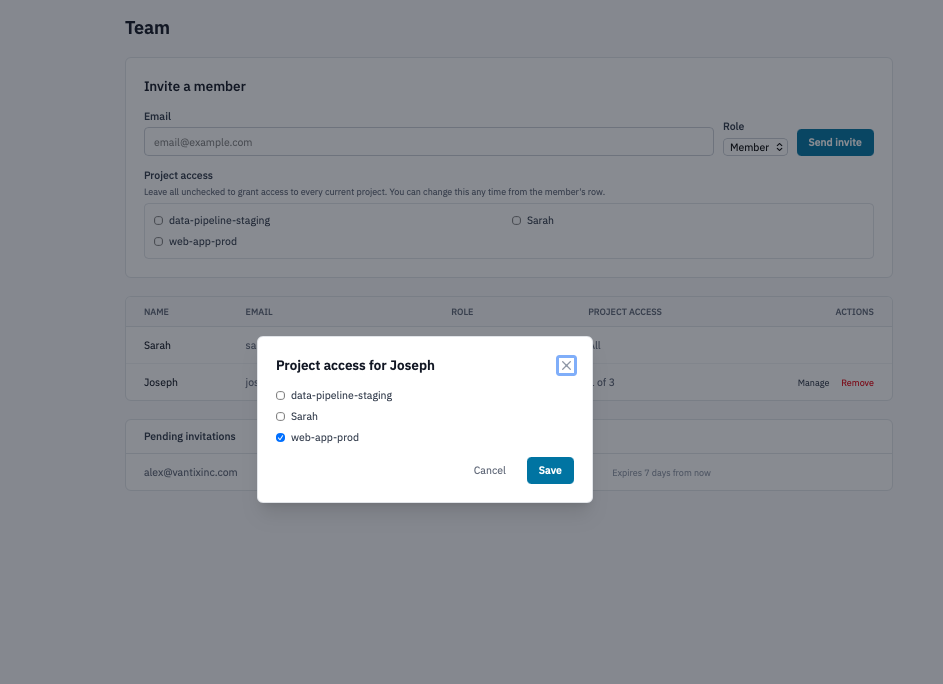
Project access modal listing the org's projects with tick boxes.
-
Tick the projects this member should see, untick the ones they shouldn't, and save.
Owners and admins always see every project; this control only affects Member-role users.
Verification
- A role change is reflected immediately in the Role column on the Team page.
- A removed member's email leaves the Team list. If they were the recipient of a pending invitation, that invitation isn't affected — invitations and memberships are separate records.
- Per-project access changes show as
N of Min the Project access column.
Next steps
- Transfer ownership
- Invite teammates
- Audit log — every role change and removal is recorded.