Invite teammates
Bring teammates into your organisation by sending them an invitation. This page covers both sides: how an owner or admin sends an invite, and how the recipient accepts it.
Prerequisites
- An organisation you're a member of as owner or admin (to send invitations).
- The email address of the person you want to invite.
Steps
1. Send an invitation
-
Open the organisation's Team page from the side navigation.
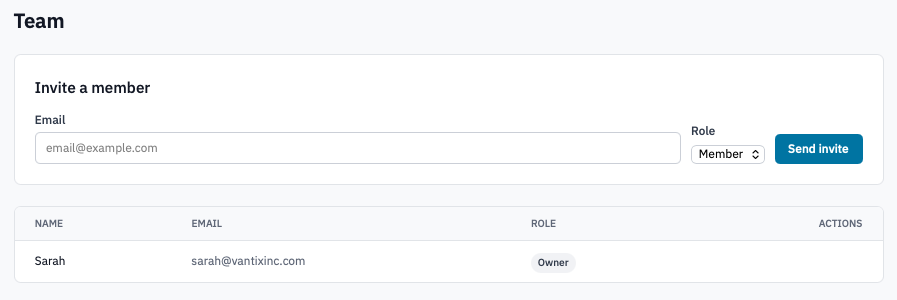
Team page with the invite form at the top.
-
In the Invite a member card, enter:
- Email — the email address the invitation goes to. The recipient must use this exact email when they sign in or sign up.
- Role — pick Member (read-only access to projects) or Admin (can invite, manage projects, manage members other than owners). Owners can't be invited directly — see Transfer ownership.
-
(Optional) If your organisation has per-project access turned on, an extra Project access picker appears after you pick the Member role. Leave it all unchecked to grant access to every current project, or tick specific projects to limit the member's access. See Organisation settings for the access toggle.
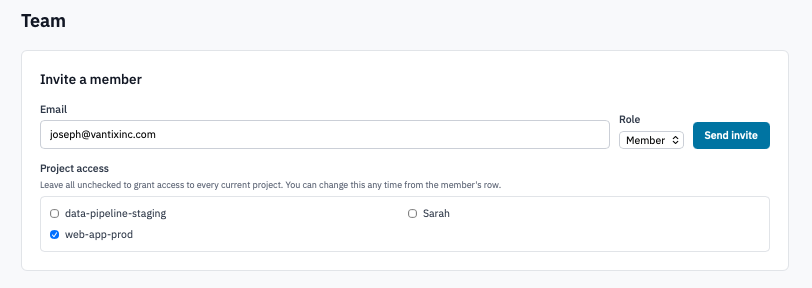
Invite form with Project access picker shown.
-
Click Send invite.
- If email is enabled on your deployment, the invitee receives an email with the accept link.
- If email is disabled (for example, on an air-gapped deployment), the invitation is created and appears in the Pending invitations card with a Copy link button. Send that link to the invitee through whatever channel you use (chat, secure share, in person).
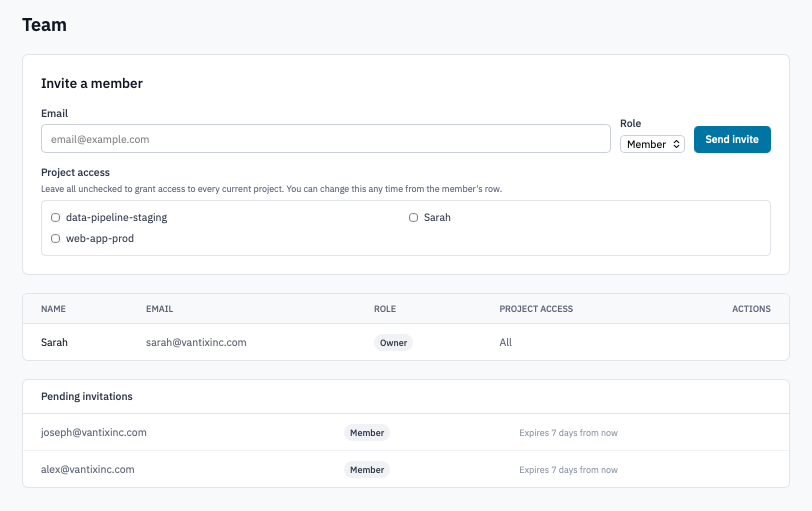
Pending invitations card with the Copy link button visible.
2. Accept an invitation
The recipient does these steps. Forward this section to them if you're sending the invitation manually.
-
Open the invitation link (from the email or the link your administrator shared).
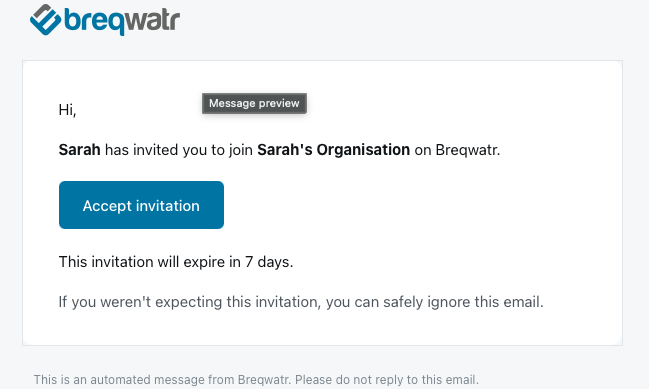
Invitation landing page showing the inviter's name, organisation, and role.
-
Click Accept invitation.
-
If you're not signed in, you'll be sent to either:
- the sign-in page (if there's already an account on the invitation's email address), or
- the sign-up page with the email pre-filled (if you don't have an account yet).
Complete sign-in or sign-up, then the accept happens automatically.
-
If the invitation has expired, you'll see an expired notice. Ask the sender to issue a fresh invitation — they're good for 7 days from when they're sent.
Screenshot needed
Expired invitation page.
Verification
- The sender sees the new member appear in the Team list and the pending invitation drops off the Pending invitations card.
- The recipient lands on the organisation's Team page with a confirmation notice and can immediately start using the organisation in their assigned role.
Next steps
- Manage member roles — change someone's role or remove them.
- Transfer ownership — promote another member to owner.
- Manage projects — set up projects so the new member has something to work on.