Invoices
Invoices are generated automatically on the first of each month at 02:00 UTC for the previous calendar month. Each invoice covers a single project — an organisation with five billable projects receives five invoices a month.
Prerequisites
- An organisation you're a member of as owner or admin. Members can't view invoices.
Steps
1. View the invoice list
-
Open Billing → Invoices from the side navigation for an organisation-wide list, or Project → Billing → Invoices for a single project's invoices.
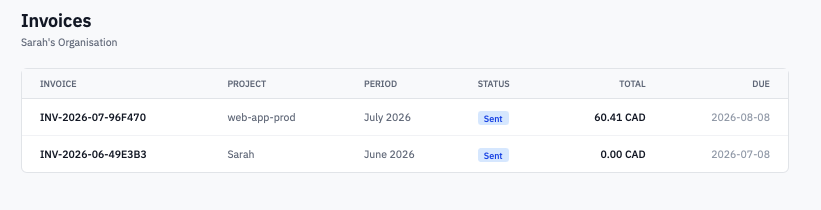
Invoices list showing project, period, status, total, and due date columns.
-
Each row shows the invoice number, project, billing period (e.g.
October 2026), status, total, and due date.Status colours:
- Sent (blue) — issued, not yet paid.
- Paid (green) — paid in full.
- Void (red) — cancelled. Voided invoices are kept for audit but no longer count toward your outstanding balance.
A yellow Manual badge means the project this invoice belongs to is billed manually (not on auto-pay).
-
Click an invoice number to open it.
2. Read an invoice
-
The header shows the issuer (Breqwatr), the Bill To block with your organisation's billing details and tax region, and the invoice metadata (number, project, dates).
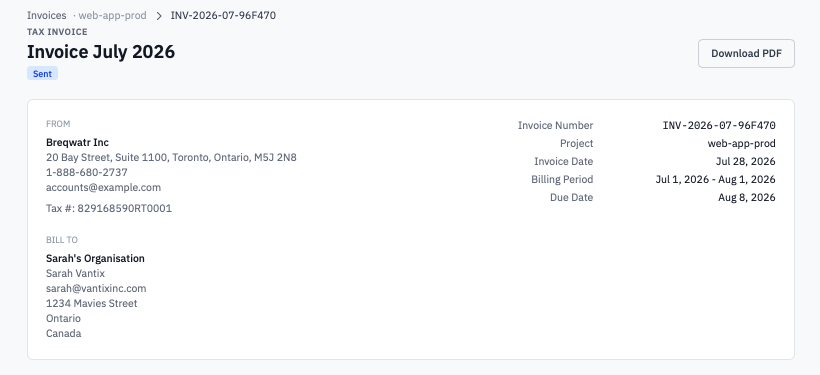
Invoice header showing Issued by, Bill To, and metadata.
If the invoice has any tax on it, the page is labelled TAX INVOICE in the top-left. If the supply is Zero-rated (you are in a region where tax is configured but the rate evaluates to zero — for example, exporting customer), that line shows next to the bill-to block.
-
The Summary block lists the totals:
- Subtotal — the sum of all line items, pre-tax.
- Discount Applied (if any) — green, subtracted from the subtotal.
- Credit Applied (if any) — green, subtracted from the subtotal.
- Tax — labelled per your region (e.g.
HST (13.00%),GST/PST), applied to the post-discount, post-credit base. - Invoice Total — what's owed.
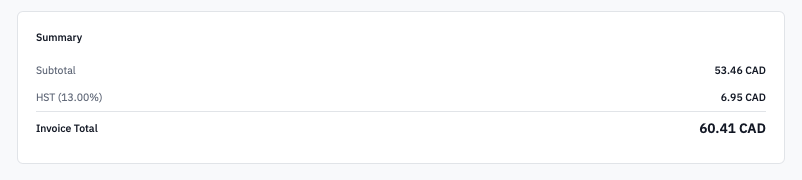
Invoice summary showing subtotal, discount, credit, tax, and total rows.
-
The Line items table below shows every charge, grouped by resource type (compute, volumes, snapshots, floating IPs, networks, routers, plus subscriptions if any).
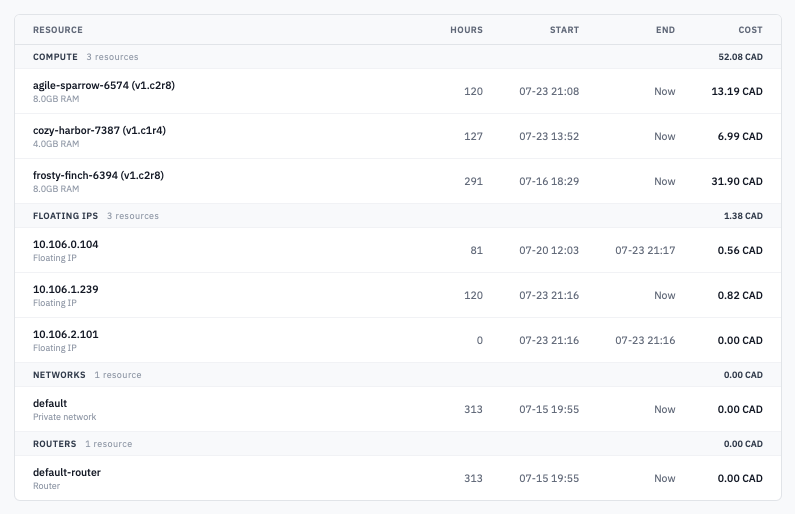
Invoice line items grouped by resource type.
- (Optional) Click Download PDF in the top right to save a PDF copy. The PDF is the same content as the page, formatted for filing.
3. Understand tax treatment
Tax is applied after both discounts and credits. The order is:
- Subtotal (line items).
- Subtract Discount Applied.
- Subtract Credit Applied (drawn from your credit ledger).
- Multiply the result by your effective tax rate to get the Tax line.
- Add the Tax line to the post-discount, post-credit base for the Invoice Total.
So a $100 credit on a $200 invoice with a 13% tax rate is not "save $100"; it's "save $113" — the $100 reduction also wipes out the tax that would have been owed on it.
4. Refunds and adjustments
Invoices are immutable once issued. The Portal does not let you edit, partially adjust, or merge invoices.
If you're owed a refund or your account manager has authorised goodwill, the entry lands in your credit ledger as a separate transaction. The credit is applied to your next invoice automatically. The original invoice stays exactly as it was issued, and the credit line shows in the next invoice's summary block. This keeps every historical invoice valid for audit and matches the paperwork your finance team already filed.
Verification
- Sent → Paid transition — auto-pay invoices move to Paid shortly after issue (a Stripe webhook flips the status). Manual invoices stay Sent until your team pays them.
- Sum of all paid invoices in a month matches the bank statement.
- A credit applied to an invoice appears as a
Credit appliedrow in billing overview's activity feed.
Next steps
- Payment methods to set up auto-pay so invoices move to Paid without manual intervention.
- View usage for the same month to verify the line items.
- Billing overview for the activity feed and balances.