Billing overview
The Billing page is your starting point for everything financial: how much you've consumed this month, what you owe, how credits and discounts are stacking up, and what's coming next. It's only visible when your Breqwatr Cloud deployment has the billing module turned on — some deployments (typically air-gapped or self-hosted installs) don't bill at all, and the section is hidden.
Prerequisites
- An organisation you're a member of as owner or admin. Members can't see billing.
- Billing details on file (billing email, name, address, country and region). If they're missing, the Portal will block project creation and prompt you to fill them in. See Set up your billing details.
Steps: read the overview page
- Open Billing from the side navigation.
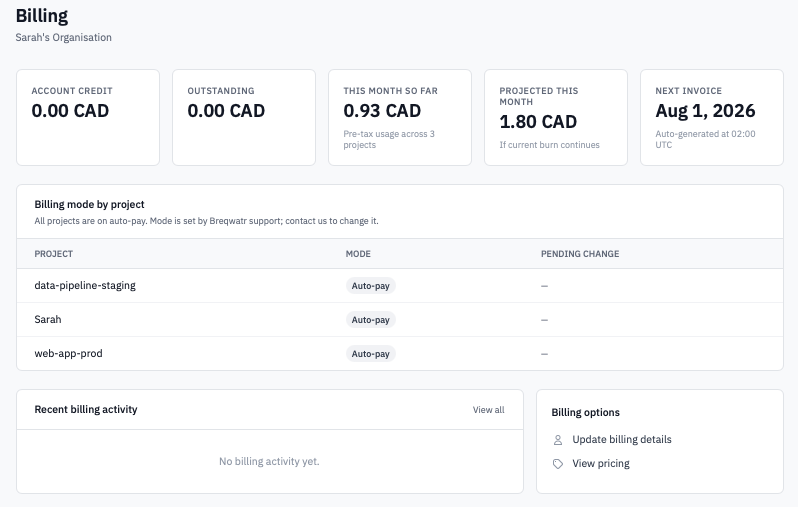
Billing overview with the five summary tiles across the top.
-
Read the five tiles across the top:
- Account credit — how much credit your organisation has available. Credits are applied to future invoices automatically.
- Outstanding — what you owe right now (sent-but-unpaid invoices plus any carried balance). If anything is overdue, the tile turns red and tells you how many invoices.
- This month so far — pre-tax usage accumulated since the first of the current month, summed across every billable project.
- Projected this month — extrapolation of the month-to-date number through the end of the month, assuming the current burn rate continues. A forecast, not a commitment.
- Next invoice — when the next monthly invoice run kicks off (the first of next month, at 02:00 UTC).
-
(Optional) Below the tiles, the Billing mode by project card shows which projects are on auto-pay vs manual billing, and any pending mode changes. Mode is controlled by Breqwatr support — contact support to switch a project between auto-pay and manual.
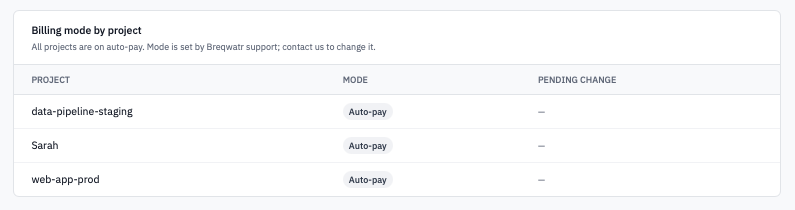
Billing mode table with a mix of auto-pay and manual projects.
-
The Recent billing activity feed lists invoices issued, paid, or voided, and credit grants, refunds, applications, and adjustments. Click any row to jump to the related invoice. Use View all to open the full activity page, which shows up to the most recent 50 events with the same row format.

Recent billing activity feed showing a mix of invoices and credit transactions.
- The Billing options card links to Update billing details and View pricing.
How credits and discounts apply
Both credit applied and discount applied reduce the invoice subtotal before tax is computed. The full order of operations on each invoice is:
- Sum line items → Subtotal.
- Subtract any Discount applied.
- Subtract any Credit applied (from the credit ledger).
- Apply the Tax label and rate for the billing region.
- Result is the Invoice Total.
This means a discount or a credit shrinks the taxable base — you pay less tax as a result of using credits, not just less principal.
How refunds work
Refunds and goodwill adjustments don't edit historic invoices.
They're entered into the credit ledger as separate transactions
(Credit granted or Credit refunded) and are then applied
automatically against the next invoice. The original invoice stays
exactly as it was issued; the change shows up as a credit on the
next one. This keeps historical invoices auditable and matches the
documents your finance team already filed.
Verification
- Tile numbers update on page refresh. Month-to-date may take a few seconds longer than the others — it walks every project's usage.
- A change to billing details is reflected immediately on the next invoice (the next-invoice tile shows when that is).
Next steps
- View usage for a project breakdown.
- Invoices for invoice list, detail, and PDF download.
- Payment methods to set up auto-pay.
- Pricing for the per-resource rate table.