Create a Kubernetes cluster with GPUs
GPU-equipped Kubernetes clusters use the same Strata flow as a standard cluster — pick a different cluster template and a GPU worker flavor, everything else is the same.
Breqwatr Cloud supports NVIDIA GPUs in PCI pass-through mode.
GPU-aware cluster templates ship with the NVIDIA driver
pre-installed and the nouveau driver blacklisted, so the only
thing you do per-cluster is pick the right template + flavor.
Prerequisites
- Everything from Create a Kubernetes cluster.
- GPU-pass-through flavors and NVIDIA cluster templates published by your operator. List the templates first (see below) — if no NVIDIA-prefixed template appears, your deployment doesn't have GPU support enabled and you should contact support.
Create via the Portal
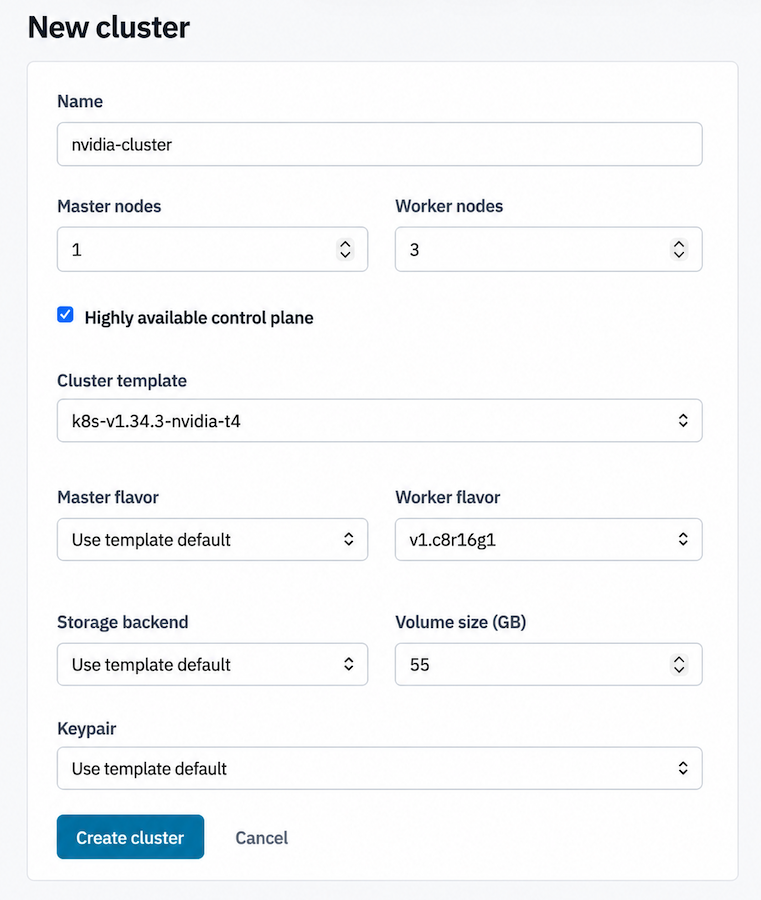
Follow the full walkthrough in Create a Kubernetes cluster, with two GPU-specific choices:
- Cluster template — pick a template whose name marks it as
NVIDIA-equipped (e.g.
k8s-v1.34.3-nvidia-t4,k8s-v1.34.3-nvidia-a100). The template controls which driver version and CUDA version come pre-installed on worker nodes.
New cluster form's Cluster template dropdown open with NVIDIA-suffixed entries visible.
-
Worker flavor — pick a flavor with a
g<N>suffix or equivalent indicator of PCI pass-through (e.g.v1.c8r16g1for an 8 vCPU / 16 GB RAM / 1 GPU pass-through flavor). The flavor'spci_passthroughproperty (e.g.pci_passthrough:alias='t4:1') tells OpenStack which physical GPU model to attach. -
Master flavor — leave on the template default. Masters don't need GPUs.
-
Volume size (GB) — consider bumping above the default
55. The NVIDIA driver, CUDA libraries, and typical workload images push GPU node disk usage well above a stock K8s node's. -
Click Create cluster and watch provisioning.
Create via the OpenStack CLI
Find an NVIDIA cluster template
Example output:
+--------------------------------------+--------------------------------+
| uuid                                 | name                           |
+--------------------------------------+--------------------------------+
| 8b3c1f74-2a91-4d12-9b6e-7a4f3c512db4 | k8s-v1.34.3                    |
| e5dfd8db-64bd-44e4-990c-8f177093e0cd | k8s-v1.34.3-nvidia-t4          |
| 1f9e7d22-8c45-4b30-a118-d6a5f0a17f8c | k8s-v1.34.3-nvidia-a100        |
+--------------------------------------+--------------------------------+
You can pass either the template name or its UUID to
--cluster-template.
Create the cluster
openstack --os-cloud breqwatr coe cluster create gpu-cluster \
  --cluster-template k8s-v1.34.3-nvidia-t4 \
  --keypair laptop-mike \
  --master-count 1 \
  --node-count 1 \
  --master-flavor v1.c4r8 \
  --flavor v1.c8r16g1 \
  --labels boot_volume_size=100,boot_volume_type=ceph,kube_tag=v1.34.3
--labels overrides per-cluster Magnum behaviours; the example
above bumps the boot volume to 100 GB and pins the Kubernetes
version. Drop or adjust labels as your operator's templates
prescribe.
Verification
Once the cluster reaches CREATE_COMPLETE:
openstack --os-cloud breqwatr coe cluster config gpu-cluster
export KUBECONFIG=$(pwd)/config
kubectl get nodes -o wide
Check the GPUs are exposed to the scheduler. The NVIDIA device
plugin runs as a DaemonSet shipped with the template's
provisioning; once it's up, GPU resources surface as
nvidia.com/gpu:
Look for nvidia.com/gpu: 1 (or higher) under Capacity. A
quick smoke-test pod:
apiVersion: v1
kind: Pod
metadata:
  name: cuda-smoke
spec:
  restartPolicy: Never
  containers:
    - name: nvidia-smi
      image: nvidia/cuda:12.4.1-base-ubuntu22.04
      command: ["nvidia-smi"]
      resources:
        limits:
          nvidia.com/gpu: 1
You should see nvidia-smi's output showing the GPU model, driver
version, and CUDA version.
Next steps
- Cluster autoscaling so GPU nodes scale in and out with demand (GPU instance-hours are expensive — autoscaling is the standard cost-control move).
- Dynamic Resource Allocation for finer-grained accelerator scheduling.
- Gang scheduling for jobs that need multiple GPUs co-scheduled.
- KubeRay and Kubeflow — the most common Ray and ML pipelines on top of GPU-equipped clusters.