Set up your billing details
Billing details are the customer-of-record info that appears on your invoices and the inputs Strata uses to compute tax. The Portal blocks project creation until billing details are complete — fill the form in once when you set up the organisation, and update it any time the billing contact or address changes.
Prerequisites
- An organisation you're a member of as owner or admin. Members can't edit billing.
- Your Breqwatr Cloud deployment has the billing module enabled. If the Billing entry doesn't appear in the side navigation, your deployment doesn't bill — skip this page.
Steps
-
Open Billing → Settings → Billing Details from the side navigation.
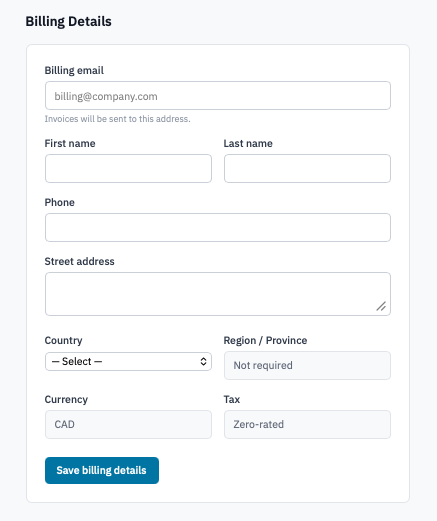
Billing Details form before any fields have been filled in.
-
Fill in:
- Billing email — where invoices are emailed when they're
issued. Most teams point this at an accounts-payable distro
(
[email protected]) rather than a personal address. - First name and Last name — the billing contact on the invoice. Optional in the form, but useful for the supplier onboarding paperwork your finance team may file.
- Phone — optional.
- Street address — the full billing address as it should appear on the invoice.
- Country — pick from the supported countries dropdown. Drives the currency and tax label.
- Region / Province — pick from the per-country dropdown.
For countries with no sub-regional tax (and
Not requiredshown next to the field), leave it blank.
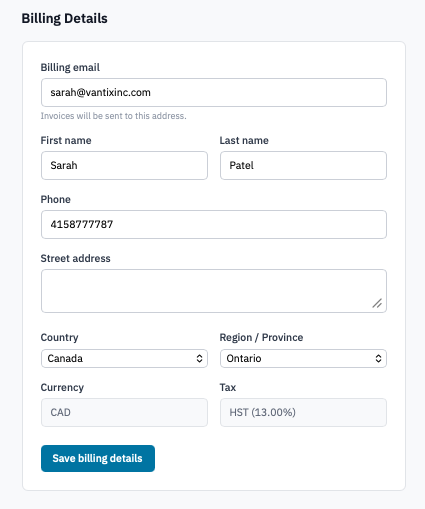
Billing Details form with country and region selected and the live tax label visible.
- Billing email — where invoices are emailed when they're
issued. Most teams point this at an accounts-payable distro
(
-
Watch the Currency and Tax read-only blocks update as you change country and region. The tax block shows either the tax label and rate (e.g.
HST (13.00%)) or Zero-rated when your region is configured but evaluates to no tax. -
Click Save billing details.
Verification
- The form reflects what you saved on next page load — billing email, contact, address, country, region.
- The Tax block shows the effective rate that will apply to the next invoice.
- New project creation is no longer blocked — try creating a project to confirm.
When to update
- The billing contact changes (someone leaves the team or hands the role to AP).
- You move countries or change the legal entity that owns the organisation.
- Your tax classification changes (e.g. zero-rated supply status).
The updated values apply to the next invoice issued. Already-issued invoices keep their original billing block — they're immutable once sent.
Next steps
- Add a payment method so auto-pay can charge the right card.
- Billing overview to see balances, upcoming invoice date, and recent activity.
- Manage projects — now unblocked.