Manage repositories
Browse repositories that have been pushed to a project's registry, inspect tags and digests, copy the right pull command, and delete tags or whole repos when you no longer need them.
Prerequisites
- The container registry turned on for the project.
- At least one image pushed to the registry — empty registries show an empty state with a link to create credentials.
- An organisation you're a member of as owner or admin to delete tags or repos.
Steps
1. Browse repositories
-
Open the project, click Container registry, then Repos.
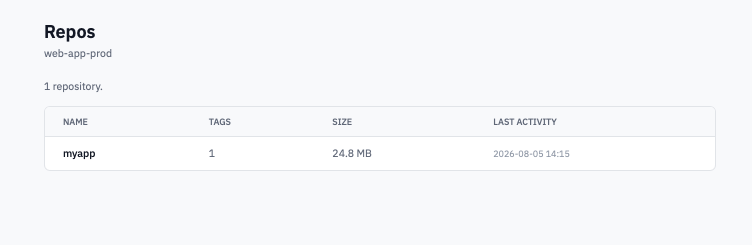
Repos page listing each repository with its tag count, size, and last activity.
-
Each row shows:
- Name — the repo name (without the org-namespace prefix,
which is implicit). The full image reference is
<registry-endpoint>/<org-slug>/<repo-name>. - Tags — how many distinct tags exist in the repo.
- Size — total bytes used by the repo (unique layers only — tags that share layers don't double-count).
- Last activity — the most recent push or change.
- Name — the repo name (without the org-namespace prefix,
which is implicit). The full image reference is
-
Click a repo name to open it.
2. Inspect a repo
The repo detail page is split into two areas:
- All tags on the left — every tag in the repo, grouped by digest (so tags pointing to the same image manifest appear together). Each row shows the tag chips, size, and last-updated time.
- Tag summary on the right — a dropdown to pick any tag, with its digest, size, last updated, vulnerability findings, and a ready-to-copy pull command.
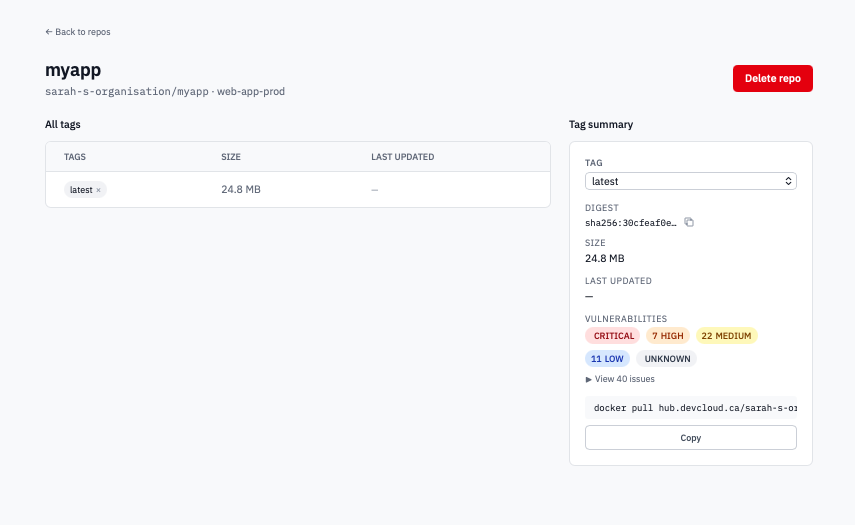
Repo detail page showing the All tags table on the left and the Tag summary card on the right.
-
(Optional) Pick a tag from the Tag dropdown in the Tag summary card. The card updates with the tag's digest, size, last updated, and an exact pull command for that tag.
-
Click Copy on the pull command to copy it to your clipboard, or Copy digest to copy the digest alone.
Read vulnerability findings
The Tag summary card includes a Vulnerabilities block when the registry has scanned the selected tag. Scanning happens asynchronously after a push — give a freshly-pushed tag a few minutes before expecting findings.
You'll see one of three states for the selected tag:
| State | What it means |
|---|---|
| No vulnerabilities reported (green) | The scanner ran and found nothing it considers reportable at any severity. |
| Severity badges (red / orange / yellow / blue / grey) | The scanner ran and found issues. Each badge shows a count for CRITICAL, HIGH, MEDIUM, LOW, and UNKNOWN severities (only non-zero badges appear). |
| Vulnerability data unavailable (grey) | The scanner couldn't return data for this tag — usually a transient registry error, occasionally an unscannable image format. Try the page again in a few minutes; if it persists, contact support. |
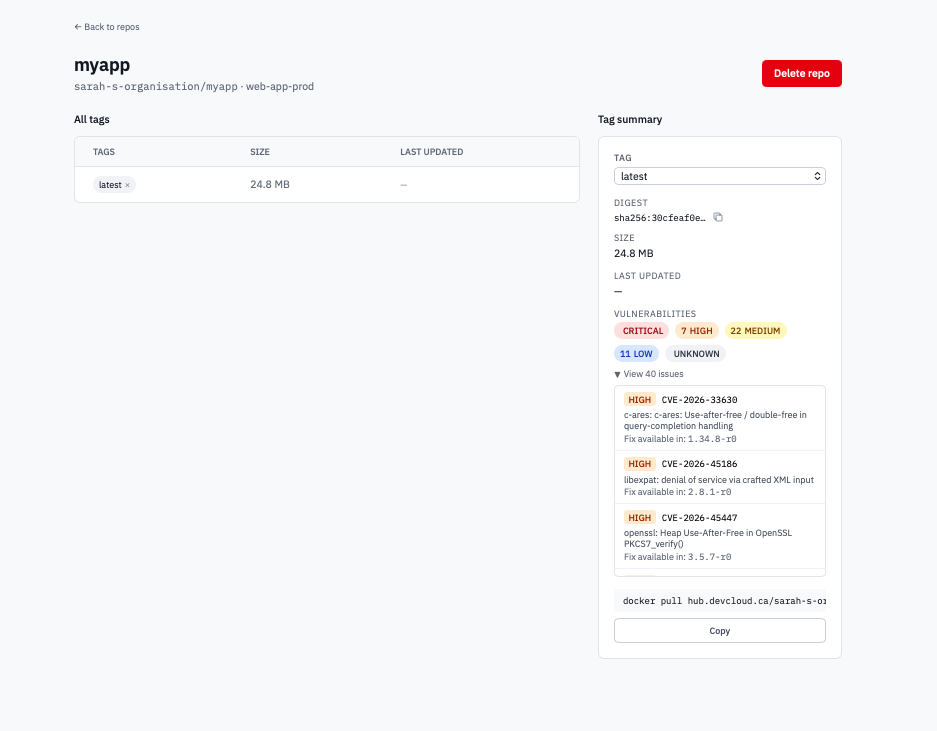 Tag summary card with CRITICAL and HIGH severity badges visible and the "View N issues" disclosure collapsed.
When badges show, click View N issues to expand the full CVE
list. Each entry includes the CVE identifier (e.g. CVE-2024-1234),
the severity, and a short summary so you can decide whether the
issue applies to your runtime. The list is sorted critical →
high → medium → low → unknown — top of the list is what to fix
first.
Note: Findings reflect the scanner's snapshot of the tag's content. They don't update if the underlying CVE database is revised; re-push the tag to trigger a fresh scan.
3. Delete a tag
A tag delete is irreversible — anyone pulling that tag starts failing immediately. Storage is reclaimed once the registry's garbage collection catches up (within a few minutes).
-
In the All tags table, click the × next to the tag chip you want to remove.
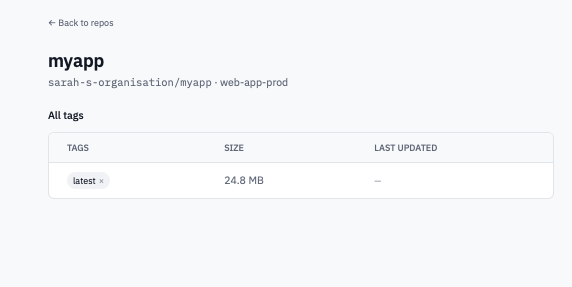
Tag chip with the × delete button visible.
-
Confirm by typing the tag name in the dialog and clicking Delete tag.
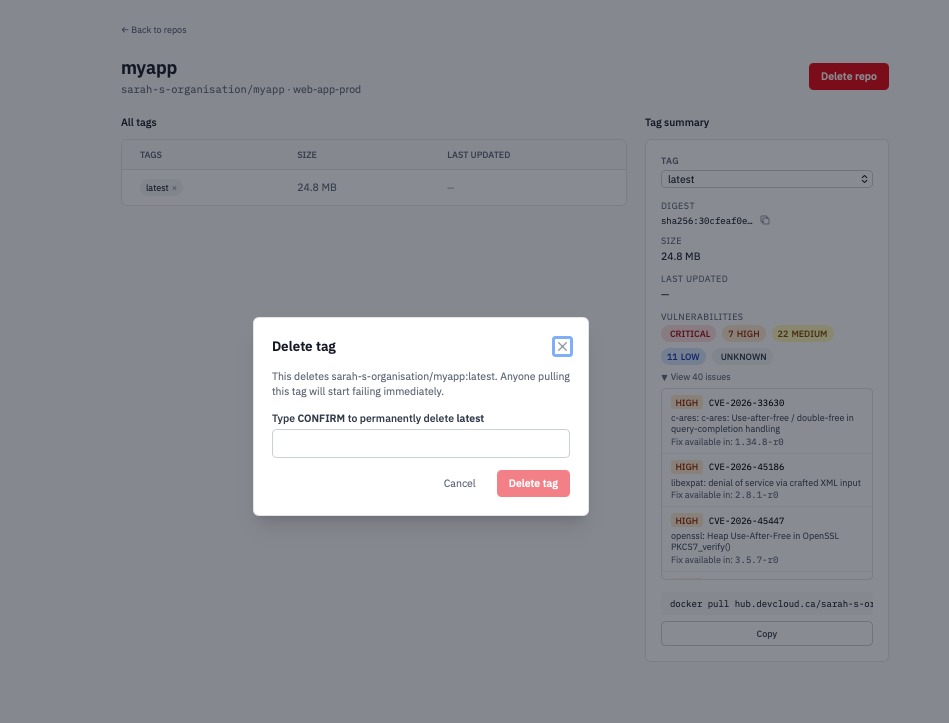
Delete tag confirmation dialog.
4. Delete a repo
Deleting a repo removes every tag in it. Storage drops within a few minutes after the registry's garbage collection runs.
-
On the repo detail page, click Delete repo in the top right.
-
Confirm by typing the repo's full name (including the org namespace) and clicking Delete repo.
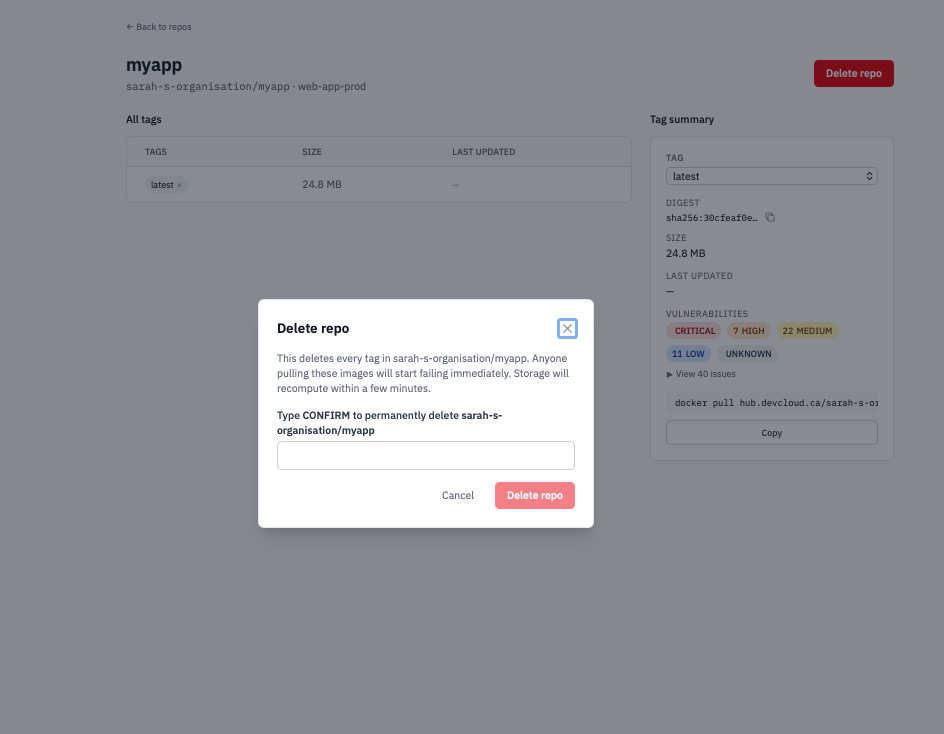
Delete repo confirmation dialog showing the full repo name.
Anything pulling images from this repo fails immediately. The next time you push to a name that matches the deleted repo, it comes back as a fresh, empty repo.
Verification
- A deleted tag drops off the All tags table immediately.
- The storage bar on the registry overview page drops within a few minutes after the registry runs its garbage collection.
- An attempted
docker pullof a deleted tag returns a manifest-not-found error.
Next steps
- Retention policy — automate this cleanup so you don't have to delete tags by hand.
- Push and pull images — push a replacement after deleting.