Resize a volume
Volumes can be grown (extended) in place — no detach, no data copy. The Portal supports extending the cloud-side volume; you'll also need to grow the filesystem inside the guest OS for the new space to appear.
For LVM-managed setups that span multiple volumes, see Live volume extension.
Prerequisites
- An existing volume.
- The volume in Available state — the Extend action is only available when the volume is detached. If the volume is currently in-use, detach it first (or use LVM live extension on a secondary volume).
- Owner or admin role in the organisation.
- Available storage quota for the additional size — see Quotas and limits.
Steps
1. Extend the volume in the Portal
-
Open Volumes under the project's menu, then click the volume's name.
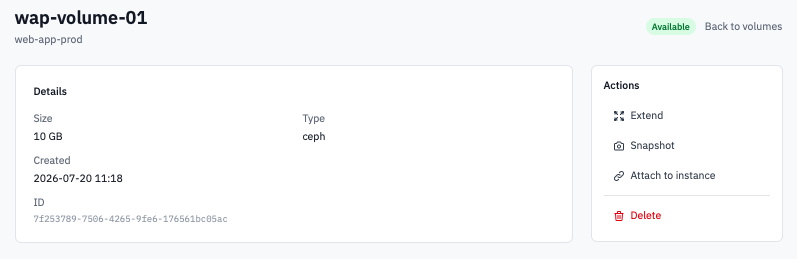
Volume detail page in Available state with the Actions panel.
-
In the Actions panel on the right, click Extend.
-
Enter the New size (GB). The field defaults to current size + 10, the minimum is current size + 1. You can only grow a volume — you can't shrink it.
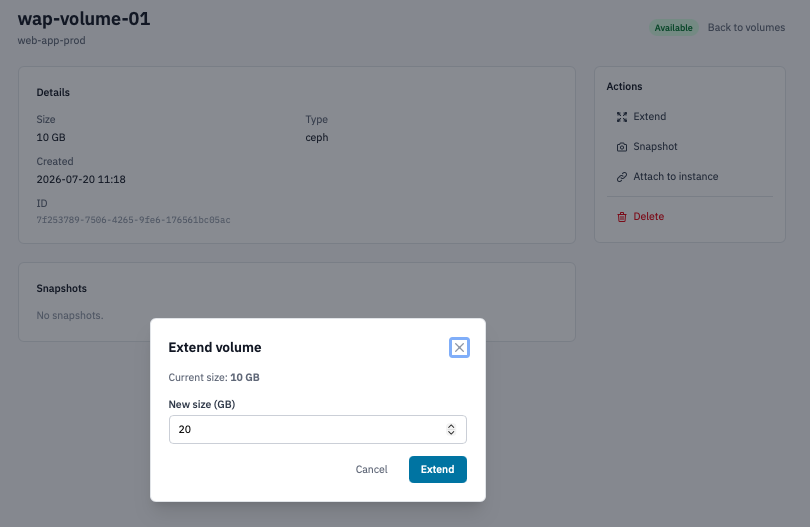
Extend volume modal showing current size and the new-size input.
-
Click Extend.
The status moves to Extending, then back to Available once OpenStack confirms the new size. The page auto-refreshes.
2. Grow the filesystem inside the guest
The cloud-side resize only changes the block device's size. The filesystem on it still thinks it's the old size — you have to grow it.
- Attach the volume back to its instance (Attach a volume).
- SSH or RDP into the instance.
Linux — ext4
-
Confirm the kernel sees the new size:
The volume (e.g.
/dev/vdb) should now show the new size. -
If the volume has a partition table (e.g.
/dev/vdb1), grow the partition first usinggrowpart: -
Grow the filesystem:
(Drop the
1if you formatted the device without a partition table —resize2fs /dev/vdb.) -
Confirm with
df -h:
Linux — XFS
XFS needs the filesystem to be mounted to grow it:
Windows
- Open Disk Management.
- Right-click the affected partition and choose Extend Volume.
- Follow the wizard to claim the new unallocated space.
Verification
- The volume's Size on the Portal's volume detail page matches the new size.
df -h(Linux) or Disk Management (Windows) shows the filesystem at the new size.
Next steps
- Take a snapshot at the new size before any data changes.
- Live volume extension — extend across multiple volumes without detaching, using LVM.