Sign in to the Breqwatr Cloud Portal
Sign in with your email and password. If two-factor authentication is enabled on your account, you'll be asked for a code immediately after.
Prerequisites
- A confirmed Breqwatr Cloud account. If you don't have one, see Sign up for a Breqwatr Cloud account.
- The sign-in URL for your Breqwatr Cloud deployment.
Steps
-
Open the Portal sign-in page.
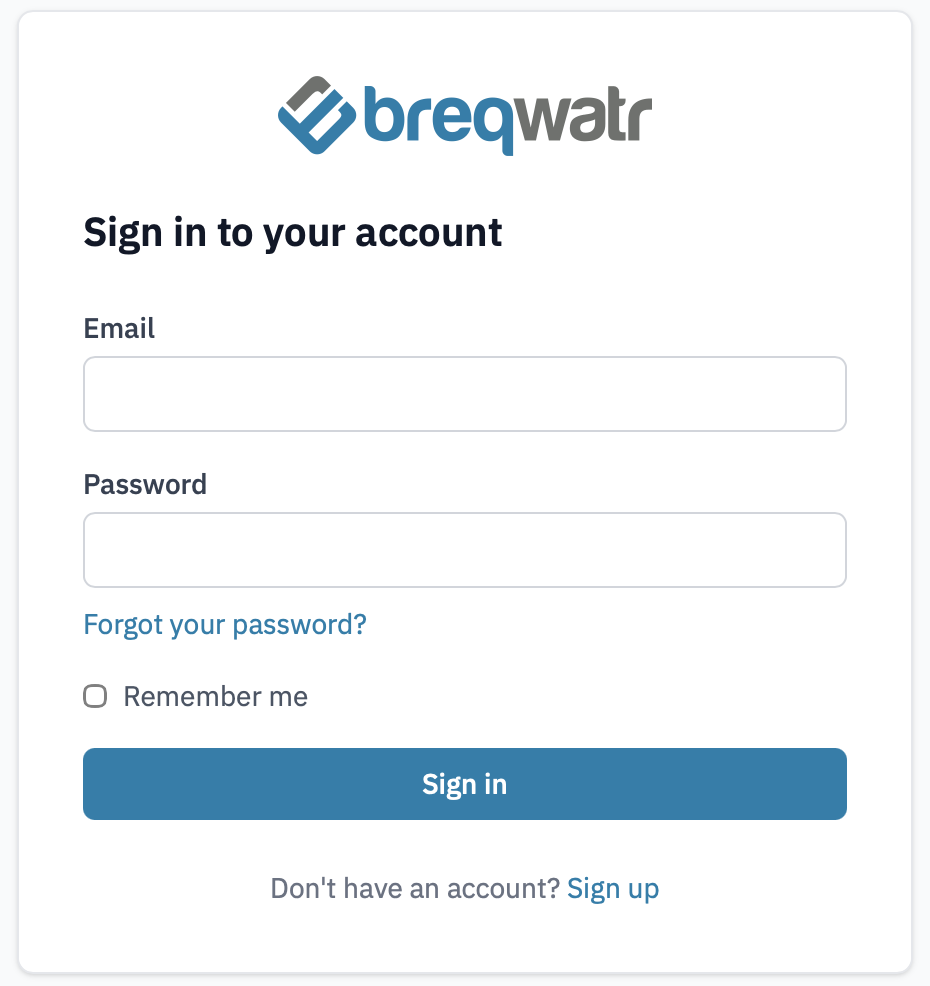
Sign-in page.
-
Enter your Email and Password.
-
(Optional) Tick Remember me to stay signed in on this device for longer.
-
Click Sign in.
-
If two-factor authentication is enabled on your account, you'll be prompted for a six-digit code from your authenticator app, or one of your recovery codes. Enter it and click Verify.
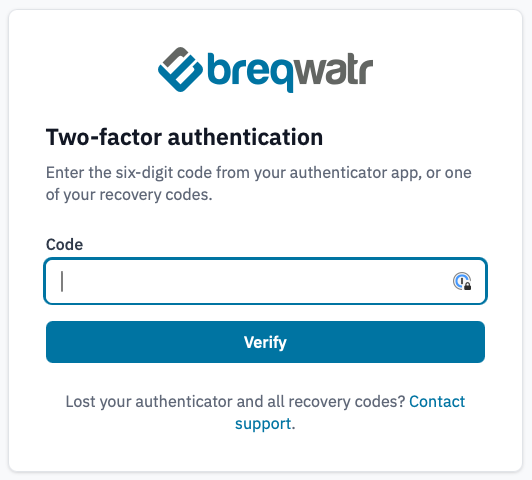
Two-factor challenge page.
If you've lost both your authenticator app and your recovery codes, use the Contact support link on that page to get help.
Verification
You'll land on your dashboard:
- A single organisation takes you straight to its dashboard.
- Multiple organisations show you a chooser — pick the one you want to work in.
-
No organisations yet shows the "Request an organisation" prompt.
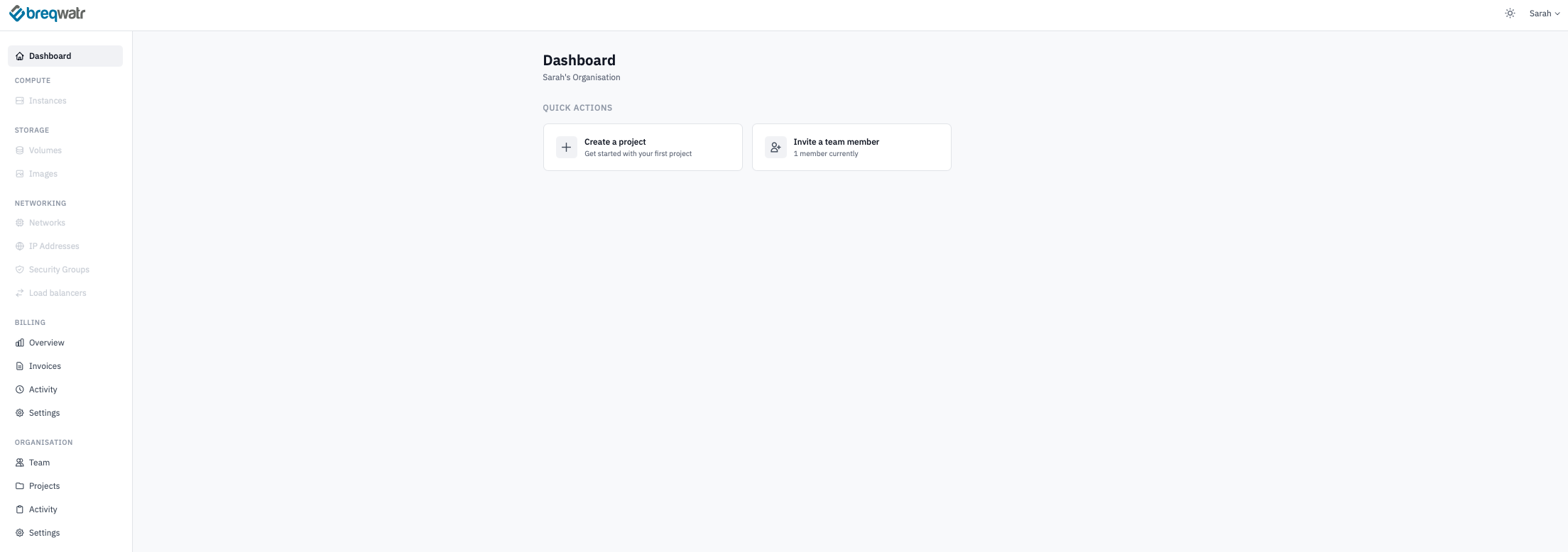
Signed-in dashboard.
Next steps
- Reset your password if you've forgotten it.
- Turn on two-factor authentication to add a code requirement at sign-in.
- Manage your profile to update your name, email, or timezone.