Pricing
The Pricing page lists the per-resource rates Breqwatr Cloud applies to your usage. The list is organisation-wide — every project in your organisation is priced the same — and matches the rates used to compute usage and invoices.
Prerequisites
- An organisation you're a member of as owner or admin.
- Your Breqwatr Cloud deployment has the billing module enabled.
Steps
-
Open Billing → Settings → Pricing from the side navigation, or click View pricing in the Billing options card on the billing overview.
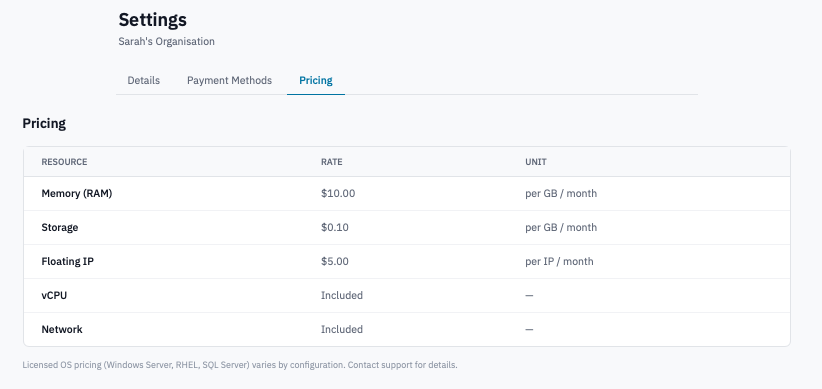
Pricing page showing the rate table for memory, storage, floating IPs, vCPU, and network.
-
Read each row:
- Resource — what's metered.
- Rate — the unit price in your organisation's currency.
- Unit — what the rate is measured against (e.g.
per GB / month).
-
Resources marked Included carry no separate charge — they're priced into the items above them.
What about licensed operating systems?
Per-hour licensing for Windows Server, Red Hat Enterprise Linux, SQL Server, and similar varies by edition, version, and instance configuration. They're not on the public price table. If you need licensed images, contact support for a quote — your account manager will add a price record specific to your organisation and the relevant image.
Verification
- Multiply a line item from the Usage page by the matching rate here — the result equals the line's charge (modulo proration for partial months).
Next steps
- View usage to see how the rates apply to your workloads.
- Invoices to see the rates rolled up monthly.