Turn on two-factor authentication
Two-factor authentication (2FA) adds a six-digit code from an authenticator app to every sign-in. Recovery codes let you get back in once if you lose access to the app.
Prerequisites
- A signed-in Breqwatr Cloud account.
- An authenticator app on your phone or password manager — 1Password, Authy, Google Authenticator, and similar all work.
Steps
1. Enrol
-
Go to Profile (avatar menu, top right) and find the Two-factor authentication section.
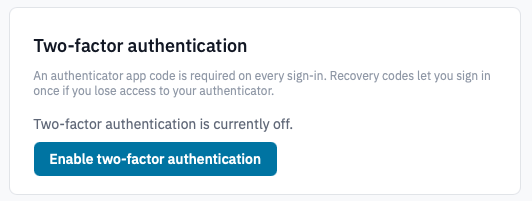
Profile page with the two-factor authentication section highlighted.
-
Click Enable two-factor authentication.
-
Scan the QR code with your authenticator app, or type the secret below it manually if your app can't scan.
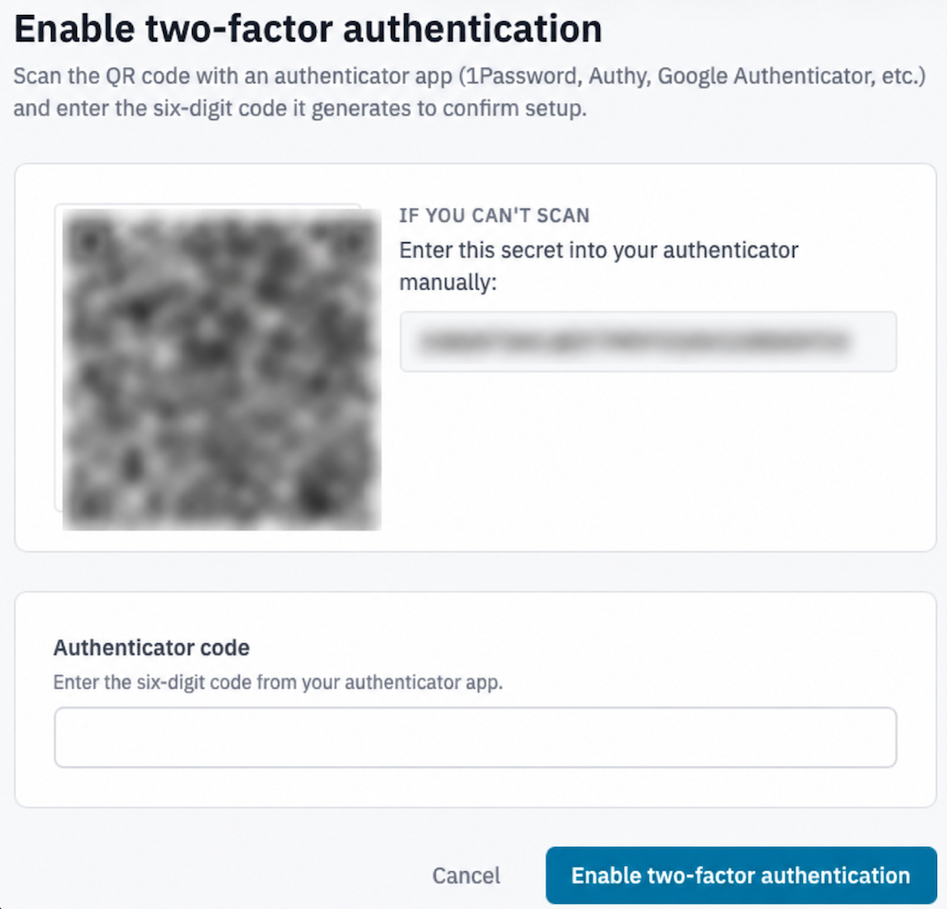
Two-factor enrolment page showing the QR code and the manual-entry secret.
-
Enter the six-digit code your authenticator now shows for Breqwatr Cloud and click Enable two-factor authentication.
2. Save your recovery codes
-
Copy or download the recovery codes shown on the next page and store them somewhere you trust — a password manager, an encrypted note, a printout in a safe.
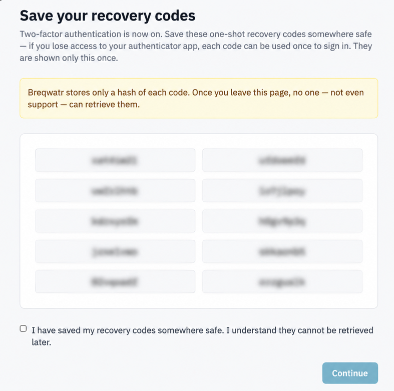
Recovery codes page.
Warning: This is the only time the codes are shown. Breqwatr stores only a hash of each one. If you lose them, no one — not even support — can recover them; you'd need to disable and re-enable 2FA to mint a fresh set.
-
Tick I have saved my recovery codes somewhere safe, then click Continue.
3. Sign in with 2FA
The next time you sign in:
- Enter your email and password as usual.
- On the Two-factor authentication screen, enter the current six-digit code from your authenticator app — or one of your recovery codes — and click Verify.
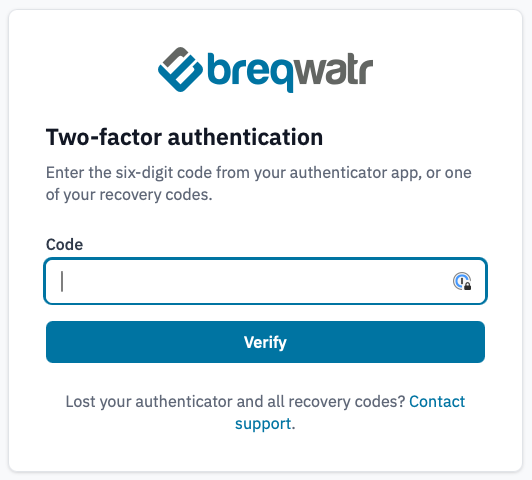
Two-factor challenge at sign-in.
Each recovery code can be used only once.
4. Disable 2FA (optional)
- Go to Profile and find the Two-factor authentication section. The status will show as enabled.
-
Enter your current password and click Disable two-factor authentication.
Note: Platform administrators cannot self-disable 2FA; another administrator has to do it.
Verification
- After enrolment, the profile page shows Two-factor authentication is enabled and the count of remaining recovery codes.
- After sign-in, the Two-factor authentication prompt appears between password entry and the dashboard.
Next steps
- Manage your profile
- Add an SSH key so you can log into instances without a password.