Create a network
A network in Breqwatr Cloud is a project-private layer-2 segment your instances attach to. Strata creates the network, its subnet, and a router with an external gateway in a single atomic operation — you don't run a separate "create a router" step afterwards.
Every new project also ships with a default network already
wired up the same way, so the create-network flow is for extra
networks (test/dev/prod separation, multi-tier topologies,
per-team segments).
Prerequisites
- A project you can launch into (owner or admin role).
- The CIDR you want to use — non-overlapping with other networks in the project.
Steps
1. Open the create form
-
Open the project from the side navigation, then click Networks under its menu.

Networks page listing the existing default network alongside the New network button.
- Click New network.
2. Fill in the modal
-
Name — short and descriptive (
prod,db-only,team-a-dev). Strata uses this for the subnet (<name>-subnet) and router (<name>-router) names too. -
CIDR — the IPv4 range for the subnet. Defaults to
10.0.1.0/24. Pick something non-overlapping with any other network in the project (and ideally with anything you might peer to later). -
Gateway IP (optional) — leave blank to use the first address in the CIDR (e.g.
10.0.1.1for10.0.1.0/24). Fill in only if you need the gateway elsewhere in the range. -
DNS servers — comma-separated. Defaults to
1.1.1.1, 1.0.0.1(Cloudflare). Replace with your operator's resolver IPs if you have internal DNS to reach. -
Enable DHCP — leave ticked for the standard case. Untick only if you'll assign IPs manually inside the guest (rare).
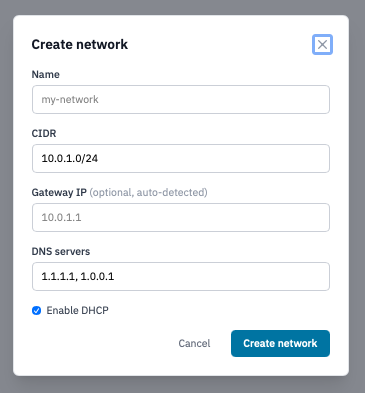
Create network modal with the five fields filled in.
- Click Create network.
3. What gets created
A single click provisions four OpenStack resources:
| Resource | Name | Role |
|---|---|---|
| Network | <name> |
The layer-2 segment. |
| Subnet | <name>-subnet |
Allocates IPs within the CIDR; carries DHCP and DNS. |
| Router | <name>-router |
Connects the subnet to the operator's public external network. |
| Router interface | (implicit) | Plumbs the subnet into the router. |
All four come up together. If any one fails (out of quota, CIDR overlap, etc.) the Portal rolls back the partial state and shows the error.
Verification
The new network appears in the Networks list with its CIDR,
gateway, DHCP state, and status. The default network and the
new network coexist; instances can attach to either at launch
(Launch an instance).
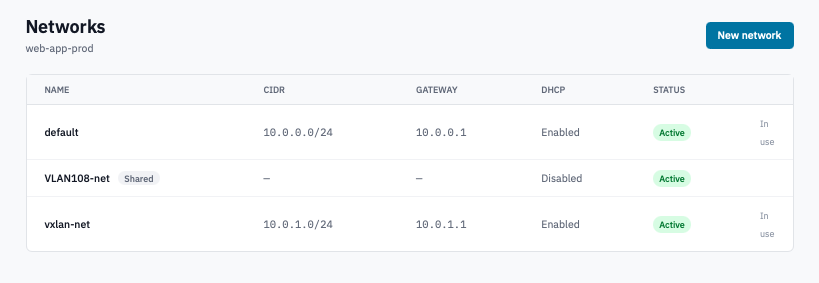
Networks page after a new network is created, showing both the default and the new entry.
Delete a network
- On the Networks page, click the trash icon on the row.
-
Confirm by typing the network's name and clicking Delete network.
Warning: Detach any instances using the network first. The delete tears down the network, its subnet, and its router together — same atomic operation in reverse.
Next steps
- Launch an instance on the new network.
- Allocate a floating IP to give an instance a routable public address.
- Configure security groups to control inbound traffic.