Sign up for a Breqwatr Cloud account
Create the account you'll use to sign in to the Breqwatr Cloud Portal, run workloads, and manage your team.
Prerequisites
- The sign-up URL for your Breqwatr Cloud deployment (your administrator will share this).
- An email address you can receive mail at.
- A password of at least 8 characters that contains an uppercase letter, a lowercase letter, and a number.
Steps
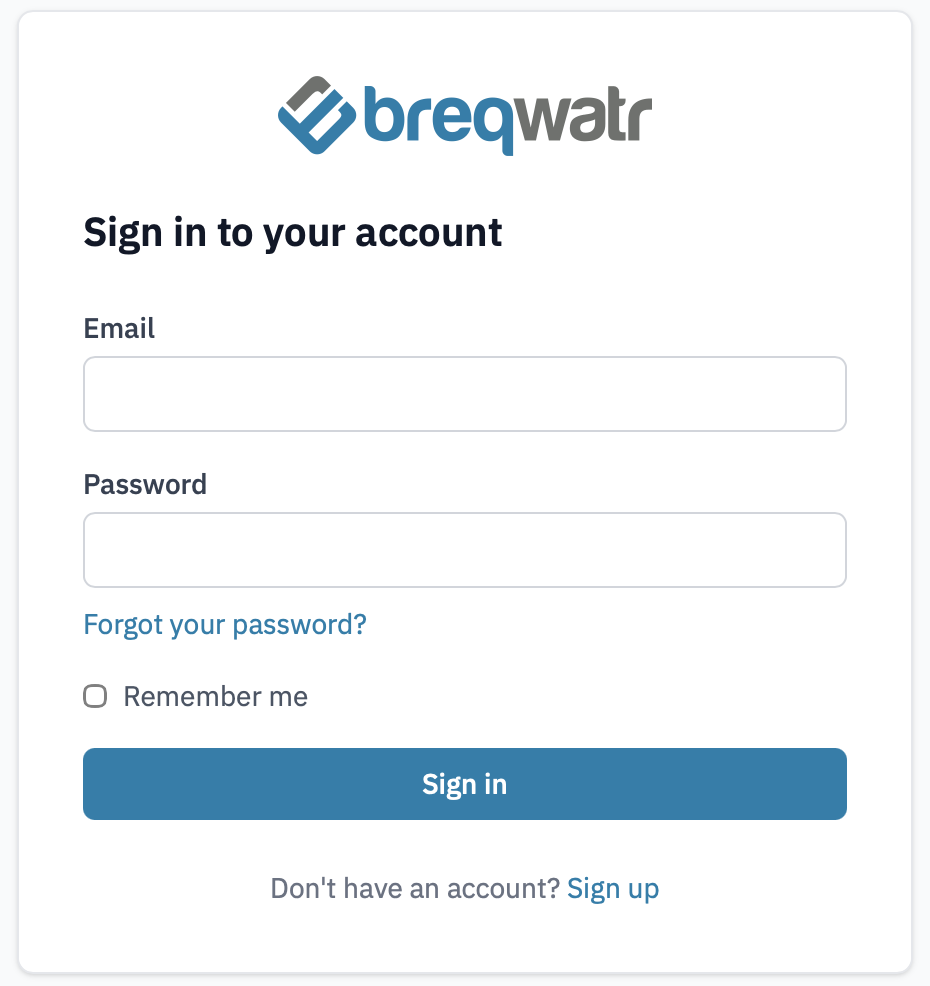
- Open the Portal sign-up page and click Sign up.
-
Fill in your details:
- Name — your full name. Used in the Portal and on team invitations you send.
- Email — used to sign in and to receive notifications.
- Password — minimum 8 characters with at least one uppercase letter, one lowercase letter, and one number.
- Confirm password — type the same password again.
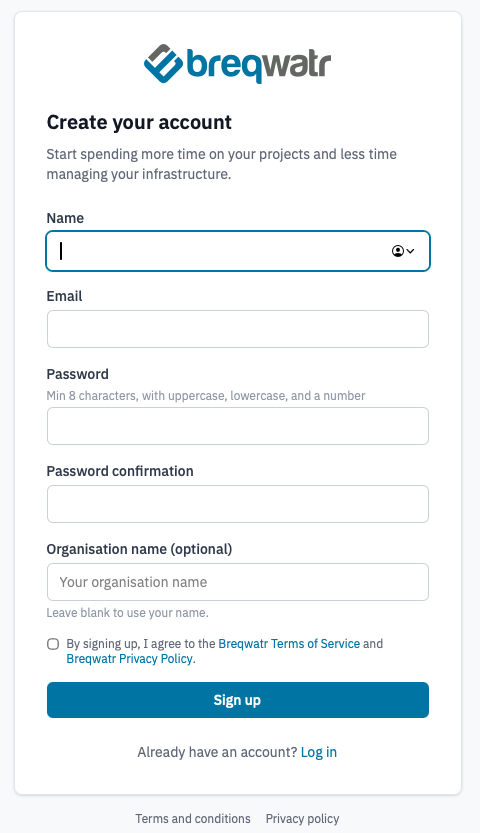
Completed sign-up form.
-
Read the Breqwatr Terms of Service and Privacy Policy, then tick the agreement checkbox.
-
Click Sign up.
You'll be returned to the sign-in page with a confirmation message.
-
If you receive a confirmation email, open it and click the confirmation link before signing in. Some deployments (for example, air-gapped installs) skip this step and confirm your account automatically — if you don't see an email after a few minutes, try signing in directly.
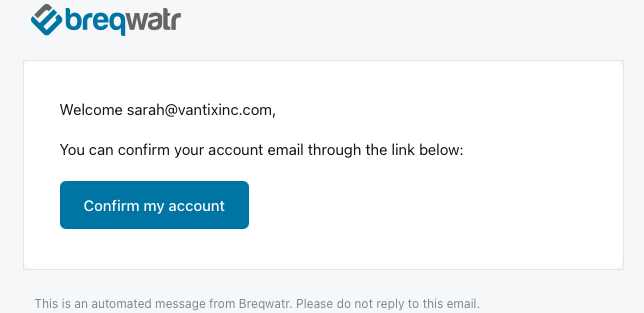
Confirmation email with the link highlighted.
-
Sign in with the email and password you just chose.
Verification
After signing in:
- If you signed up from an invitation, you'll land on the organisation you were invited to, with the role the inviter chose for you.
-
If you signed up on your own, an organisation is created for you automatically with a placeholder name (e.g.
Alex's
  Organisation
) and you're added as the owner. You'll land on the new organisation's dashboard.Rename the organisation any time from Organisation settings.
Note: If you're somehow signed in without being a member of any organisation (for example, an administrator has removed you from your previous one), the dashboard instead prompts you to Request an organisation — fill in the form and an administrator reviews your request. See Create an organisation.
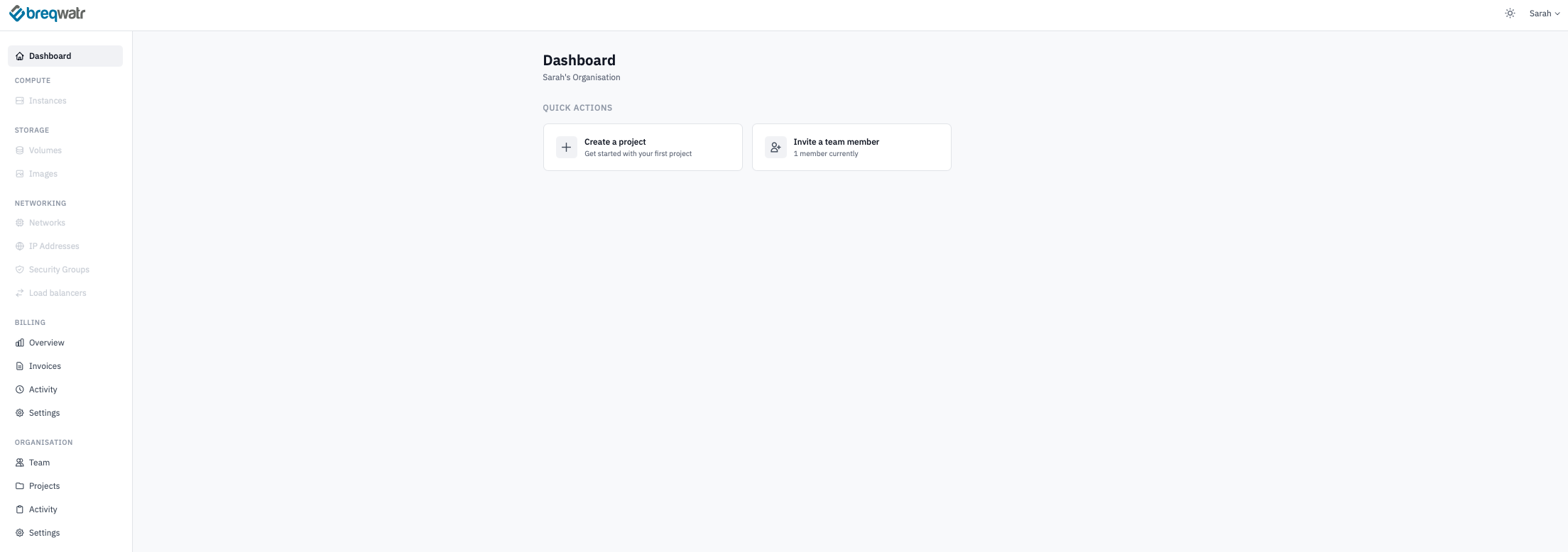
Signed-in dashboard immediately after self-signup, with the placeholder organisation name visible.